
Visualise & share
Analytics & analytics pages
The analytics and advanced-analytics pages, and building shareable analytics pages with grouped charts.
Three ways to plot
Use this page when you want to look at a sensor's record, compare sensors, or publish a set of charts for someone else to open. There are three related tools:
- Analytics (open it) — one sensor or station at a time, one chart per plotted variable, with a summary-statistics table underneath. This is the everyday view.
- Advanced Analytics (open it) — several sites on one chart with moving-average bands, weather overlays, distributions and regressions.
- Analytics pages (manage them) — a saved, named set of sensors with its own URL, optionally with combined charts, which you can share with people who have no account.
All three draw only variables whose Plot box is ticked on the Settings page, and the first two list only sensors that are Public with Show on analytics on (plus your own private sensors when signed in). See Settings & variables.
The Analytics page
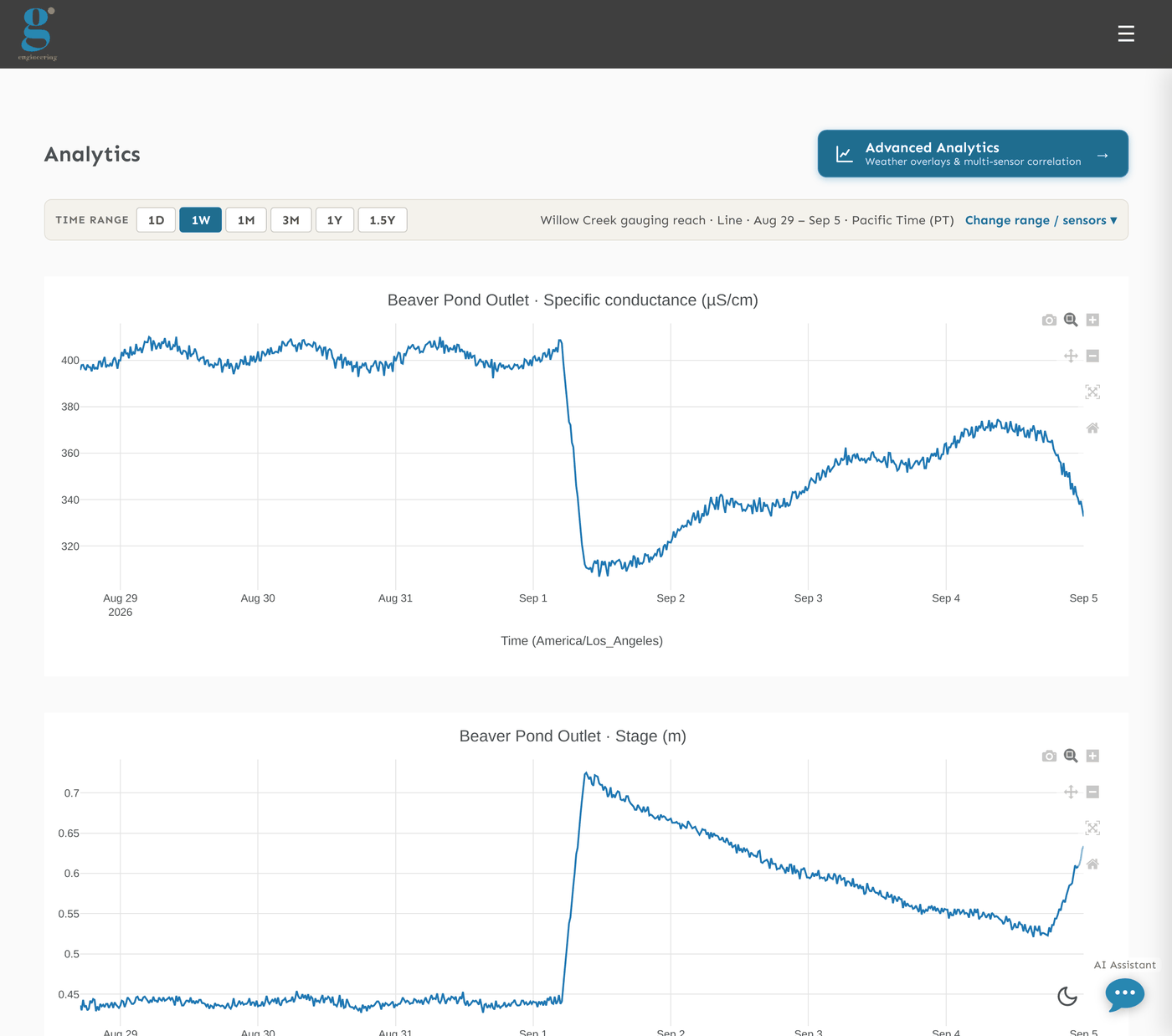
The page opens on the first site with the last seven days loaded. Pick another from the Site box in the toolbar at the top of the page; a station appears once, standing for every instrument on it, with charts labelled by instrument.
Plot type
| Plot Type | What you get |
|---|---|
| Line | One time-series chart per variable. This is the only type that accepts the rain and data-quality overlays. |
| Candlestick | Readings bucketed into open/high/low/close candles. A Candlestick Interval (minutes) selector appears with 15 min, 1 hr (default), 3 hr and 5 hr. |
| Histogram | A distribution of the loaded values. Number of Bins appears, default 10, minimum 1. |
Time range and timezone
The Time Range buttons 1D, 1W, 1M, 3M, 1Y and 1.5Y set both date pickers and load at once; 1.5Y reaches back 540 days, the widest window one request may ask for. For anything else set Start Date and End Date and press Load Data.
The page opens with a toolbar above the charts that is always in view: Find a site, Source, State and County where the source takes one, the Site box and Load Data, under a one-line hint. Below it a bar names what is drawn — sensor, plot type, dates and timezone — and holds the Time Range buttons; plot type, dates, timezone and the overlays are behind Plot type, dates & overlays in that bar.
Timezone defaults to Pacific Time and relabels every x-axis as Time (zone); the statistics table uses the same zone.
Overlays
| Control | Behaviour |
|---|---|
| Precipitation Overlay (ZIP) + Show Rain | Enter a US ZIP code, tick the box and load. Hourly rainfall in mm from Open-Meteo is drawn as bars on a right-hand Precip (mm) axis of every line chart. It is modelled, not measured — a weather model's value for a grid cell some kilometres from the ZIP, not a gauge — and a range longer than about five days is spliced from two different systems (a historical archive before, a forecast model's recent past after). The note under the controls says which systems answered, how far the served grid cell is from the ZIP, and the place the ZIP resolved to — or the error. |
| Show corrected data | Line plots only. Each point is coloured by its QC flag — amber for suspect, red for fail, the normal series colour otherwise — and where corrections exist a dashed corrected series is overlaid. When every reading in the window passed and nothing was corrected, a note under the chart says so. Reload after toggling; the statistics table switches to corrected values and drops failing readings at the same time. What the flags mean is on the Data quality page. |
Site notes
If the selected sensor (or its station) has field notes on the Settings page, they appear in full under the selectors.
Downloading and exporting
Download CSV saves the rows last loaded — one row per timestamp, and on a station one column per instrument and variable. Regulator formats (CEDEN, WQX, USGS RDB, HEC-DSS, WaterML 2.0) are not exported from here: open the Export hub, described on the Exports page.
Summary Statistics
Sources beyond your own sensors
The Find a site toolbar at the top of the page — always in view, above the time-range bar — narrows the site list by name, and by Source, State and County. Two of the sources are not this deployment's sensors at all: USGS gauges and Monitor My Watershed are national catalogues, and choosing one lists its stations instead of yours. Pick one and it becomes a site like any other — the same time range, plot type, timezone, rain overlay, summary table and CSV.
Nothing from either catalogue is stored here. A USGS gauge is read by your own browser straight from
api.waterdata.usgs.gov; Monitor My Watershed sends no CORS headers, so its readings are
relayed by this server and kept by nobody. Long ranges are fetched in four-month pieces and joined, and
readings older than about four months come from the daily-values service rather than the instantaneous
one, so a multi-year plot is coarser at the far end but not empty. A station that publishes a variable it
is not currently reporting gets no chart; the ones with nothing in them are named under the plots.
Picking a station also fills the Precipitation Overlay (ZIP) box from its coordinates, if you have not typed one yourself.
Under the charts, the Summary Statistics table shows n, Min, Mean, Median, Max and SD for every plotted variable, one row per period, newest first. Switch the period with Hourly, Daily (default), Weekly, Monthly or 6-Monthly. For one of this deployment's own sensors the numbers are aggregated in the database over the whole loaded window, not from the points on screen, so they stay right when a long range is thinned for drawing; a note says if only the most recent periods fit. For a live USGS or Monitor My Watershed station there is no row in this deployment's tables to aggregate, so the same table is computed in your browser from the readings just fetched — same columns, same periods, same rules, cut in the timezone you chose.
Advanced Analytics
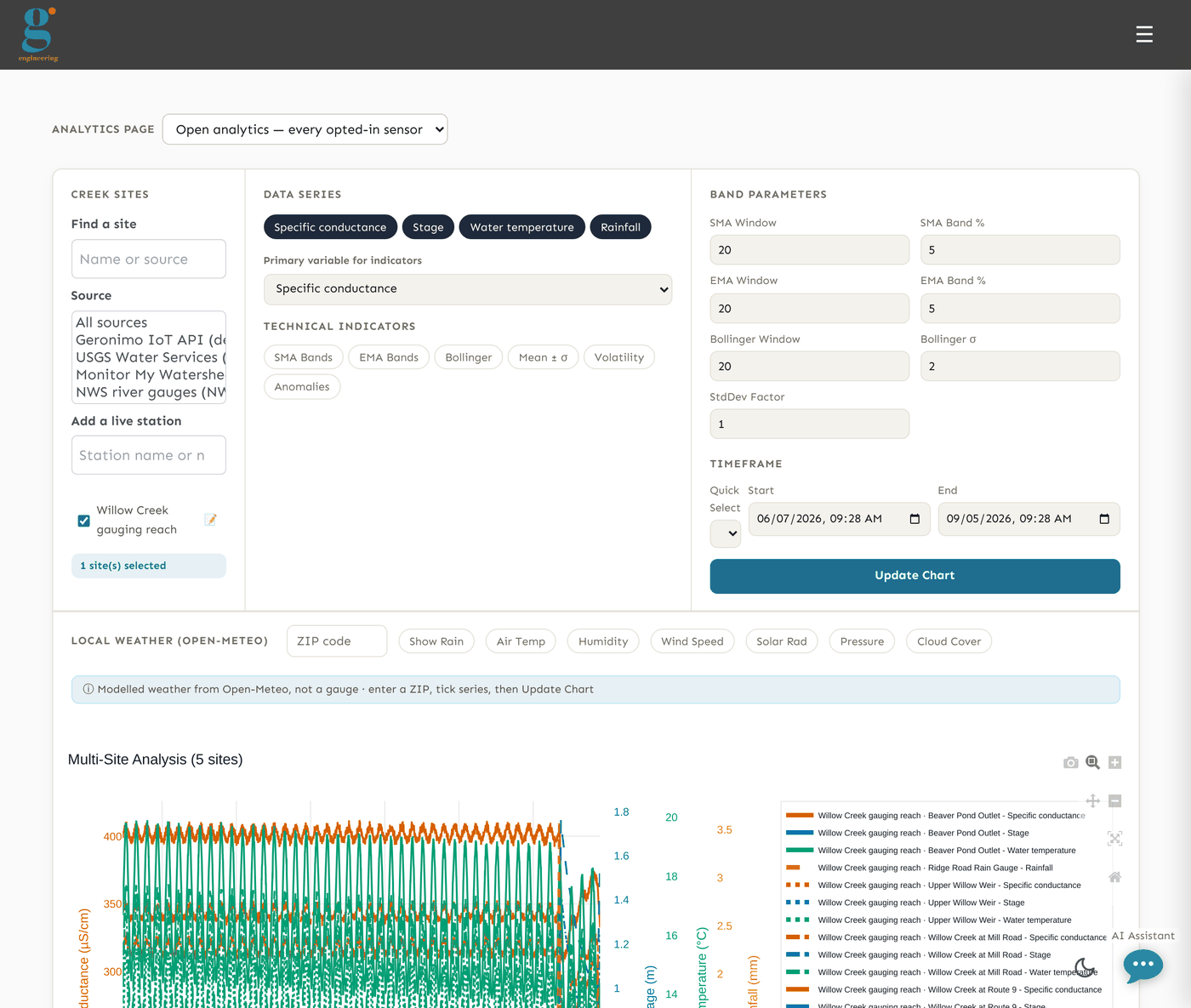
The Advanced Analytics button at the top right of Analytics carries the current site across. The page has three parts.
Technical analysis
Tick one or more Creek Sites, choose the Data Series to draw and a Primary variable for indicators, then press Update Chart. The Technical Indicators toggles are SMA Bands, EMA Bands, Bollinger, Mean ± σ, Volatility (a rolling standard deviation line) and Anomalies, which marks points outside whichever band is switched on with red diamonds. Windows and band widths live under Band Parameters. The Timeframe Quick Select offers Last Hour through Last 90 Days (default) and Custom. The Local Weather (Open-Meteo) row takes a ZIP code and adds Show Rain plus hourly Air Temp, Humidity, Wind Speed, Solar Rad, Pressure and Cloud Cover series.
Water Quality Summary and distributions
Pick a Creek Site, a Quick Select range or dates, a Timezone, and press Update. You get a card per variable with its mean, standard deviation and range, a histogram per variable (Bins 10–100, default 30) and a correlation matrix. Export CSV downloads the rows; regulator formats live in the Export hub.
Sensor Regressions
Fit one variable against another — each axis picks its own site and variable, with Linear, Quadratic and Cubic fits and R² — or switch Mode to 3D Scatter. Local Weather (Open-Meteo) is offered as a site so you can regress against the weather for the ZIP above.
Analytics pages
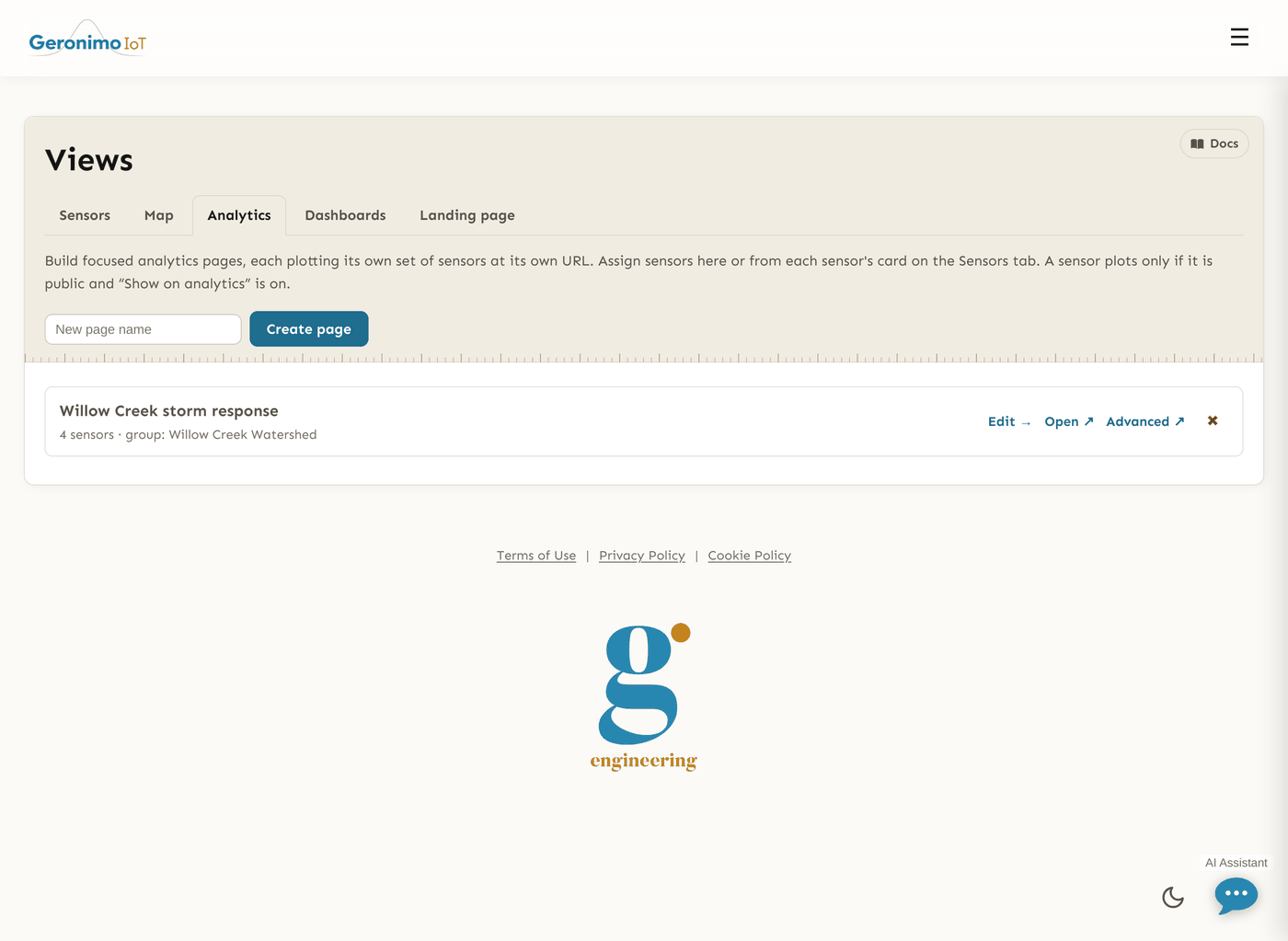
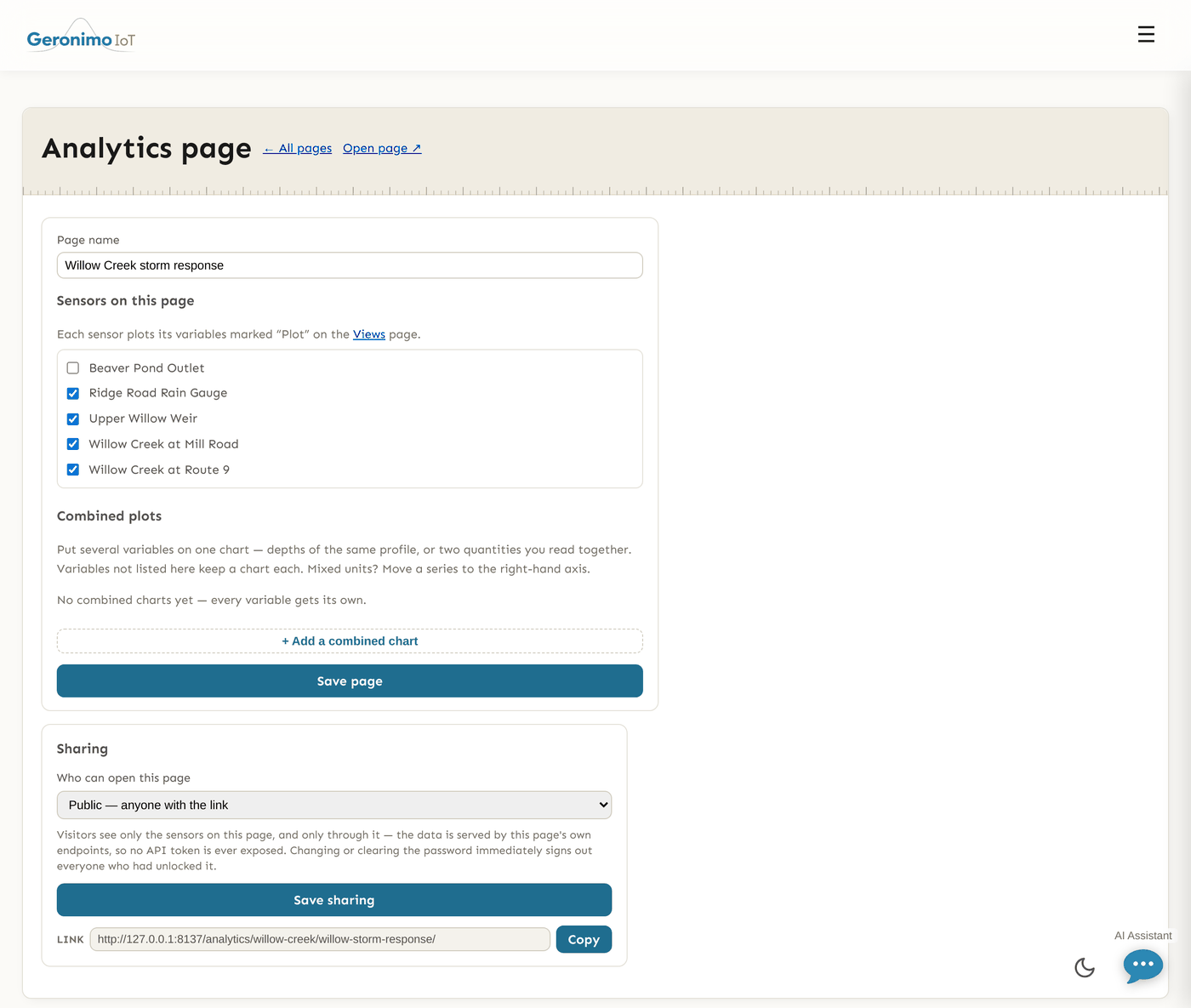
An analytics page is a saved set of sensors rendered by the same Analytics UI at its own address, analytics/<group>/<page>/. Use one when a project or a partner should see a particular set of sites and nothing else, or when several variables belong on one chart.
Creating, opening and deleting
Go to Settings and open the Analytics tab (analytics pages). Type a name and press Create page; the page lands in your first group and opens its builder. Each row offers Edit → (Builder → with read-only Settings rights), Open ↗, Advanced ↗ for the advanced tools over the same sensors, and a ✖ that deletes the page after a confirmation. Renaming happens in the builder. A sensor can also be added to pages from its card on the Sensors tab (the Pages fold-out).
The builder
| Field | Notes |
|---|---|
| Page name | Up to 100 characters. The URL slug follows the name, made unique within the group. |
| Sensors on this page | Tick the sensors to include. A sensor the builder marks private or “Show on analytics” off is not eligible for the open Analytics list; check its switches on Settings before publishing a page around it. You can only place a private sensor if you could publish it yourself. |
| Combined plots | Optional grouped charts; see below. |
| Save page | Saves name, membership and combined plots together. |
Combined plots
By default the page draws one chart per plotted variable. A combined plot puts several variables on one chart — the depths of one temperature profile, or two quantities you read together. Press + Add a combined chart, give it a title (the placeholder suggests Temperature profile), then + Add a variable for each line. Every row has a variable picker listing the page's plottable variables as site · label (unit), an axis choice of Left axis, Right axis or Far-right axis, and a colour swatch; ✕ removes the row and Remove chart removes the whole chart. Charts appear on the page in the order you created them, above the single-variable charts. Variables not named by any chart keep a chart each.
Note. Three axes is the limit on purpose: a fourth scale on one chart stops being a comparison. Mixed units belong on the right-hand axes. A variable that stops being recorded is kept in the editor marked (no longer recorded) and simply omitted from the chart until you remove it. A page may hold up to 20 combined charts of 24 lines each.
The rendered page
The page looks like Analytics with the page name as its heading; editors see Edit page →, members All pages, and when you can open more than one page a picker in the toolbar, above the Site box, jumps between them. Advanced Analytics leads to the advanced tools over the same sensors only. Data is read through endpoints belonging to the page, so a visitor never needs or receives an API token.
Sharing a page or a map
Both the analytics builder and the map builder carry the same Sharing panel. Choose Who can open this page and press Save sharing:
| Option | Who can open it |
|---|---|
| Private — sign-in required (your group only) | The default. Signed-in users with read rights on Settings in the owning group. |
| Shared link, password required | Anyone with the link who enters the password. A Password box appears; saving this option with no password is refused. Wrong guesses are rate limited. |
| Public — anyone with the link | Anyone with the link, no sign-in. |
The Link field holds the address to hand out; Copy puts it on the clipboard. A visitor to a password link sees an unlock screen naming the page, the publishing group and who shared it — check that before typing — and presses View. Changing or clearing the password, or moving back to private, immediately signs out everyone who had unlocked it; there is no token to revoke.
Careful. Visitors see only the sensors on the page, only through it. A private sensor is additionally withheld from shared-link visitors unless the page's owner could have published it themselves, so a read-only member cannot republish someone else's private data by sharing a page. Signed-in members are checked against their own grants as usual.