
Getting started
Welcome & getting started
What the platform does, a tour of the navigation, accounts, groups and folders.
What Geronimo IoT does
Geronimo IoT collects readings from environmental sensors, stores them in one place, and lets you watch, check, share and publish them. A sensor can push its own readings to the platform (a Mayfly or any device that can make an HTTP request), or the platform can pull them on a timer from a provider such as Monitor My Watershed or USGS Water Services. Once the readings are in, the same record feeds everything else:
- Alerts — six kinds of rule (static bounds, moving-average bands, machine-learning anomaly models, published temperature criteria, AND/OR compounds, and plain-English LLM questions) that email or text you when something is wrong, plus a downtime alarm for sensors that go silent.
- Maps and analytics pages you build and share — privately, by link, or on a public site for your group.
- Data quality — automated QARTOD-style tests (the IOOS real-time data quality standard), manual flags, corrections and review periods.
- Rating curves that turn a stage record into discharge.
- Exports to CEDEN, WQX, USGS RDB, HEC-DSS, WaterML2 and custom tables, and a read API (including OGC SensorThings) for other systems.
- An AI assistant that can read your sensors and propose rating, QC and export actions for you to confirm.
This page is the tour: where things are, how accounts and groups work, and where to read next.
A tour of the navigation
The bar across the top of every signed-in page reads left to right, from "is anything wrong" to the things themselves:
| Item | What it opens |
|---|---|
| Health | The Health Overview — where you land after signing in. See below. |
| Sensors | The Sensor Information list: every sensor you can see, its ingest-health badge, and the + Add a New Sensor button. Each sensor's edit page holds its data source, downtime alarm, API tokens, maintenance log, grab samples and notes. See Adding sensors. |
| Views | Four sub-tabs — Sensors, Map, Analytics, Dashboards. The first sets each sensor's variable labels, units and observed properties and its public / map / open-map / analytics switches; the other three are the map, analytics-page and dashboard builders. See Settings, Maps, Analytics and Dashboards. |
| Alerts | The alerts hub: counts of each rule kind, how many are firing now, and links into each list. See the Alerts overview. |
| Data quality | The Data quality landing page and, per sensor, the QC workbench. See Data quality. |
| Rating curves | The rating-curve landing page and per-sensor workbench. See Rating curves. |
| Export | The export hub for every format. See Exports. |
| Admin | Shown only to superusers and group owners: the admin console (users, invitations, bulk folder moves, health of the host). |
| Your name and group | At the right end of the bar, your username with your default group under it. It opens Your profile. The Docs link and the Logout button sit beside it. |
Note. The alert log lives on Your profile (the Alert log, Documentation and Assistant links at the top), not on the bar. This documentation is one click from anywhere: the Docs book icon beside your name on the bar, or the Docs chip in the corner of each feature's landing page, which opens the page for that feature.
The Health dashboard
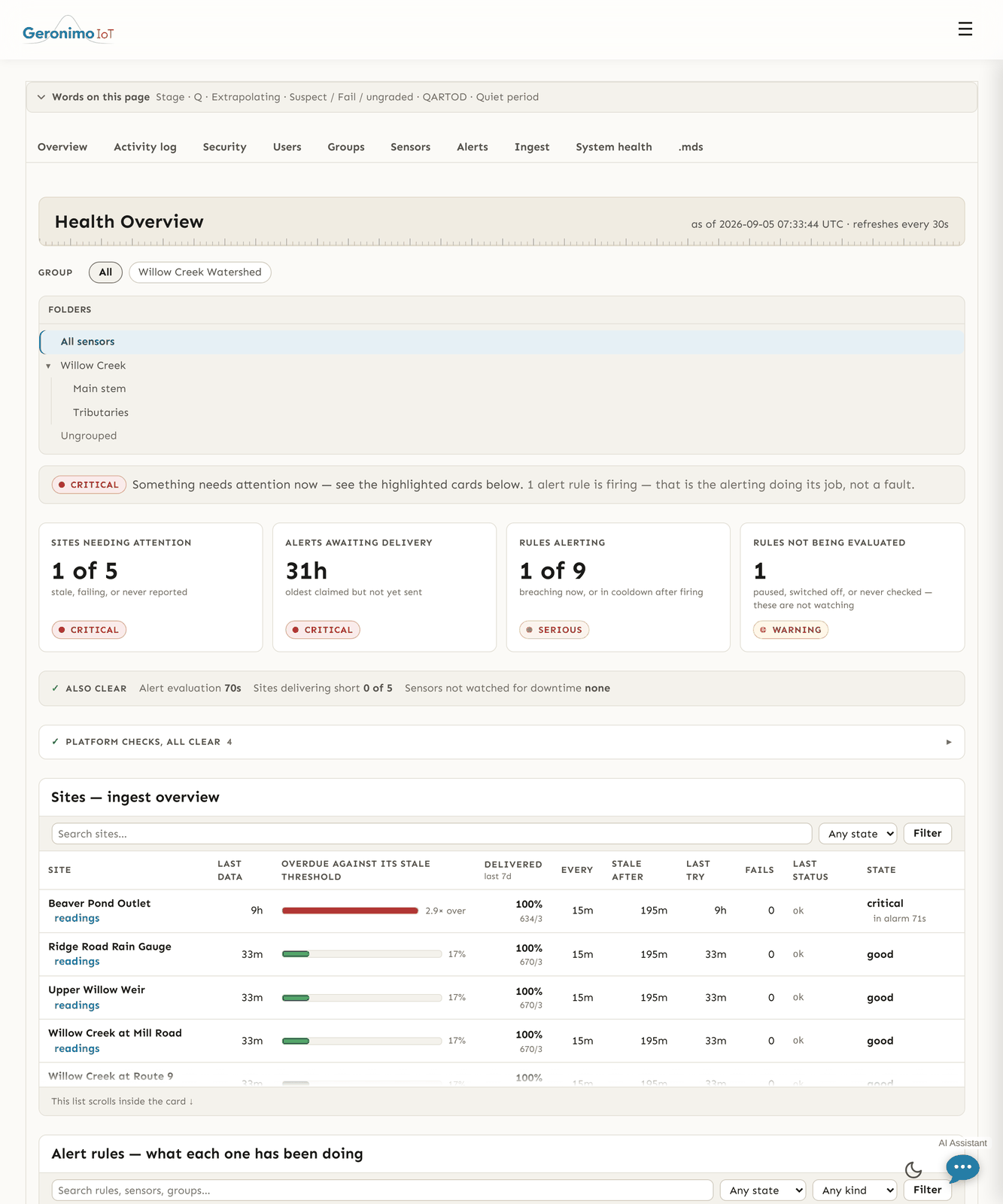
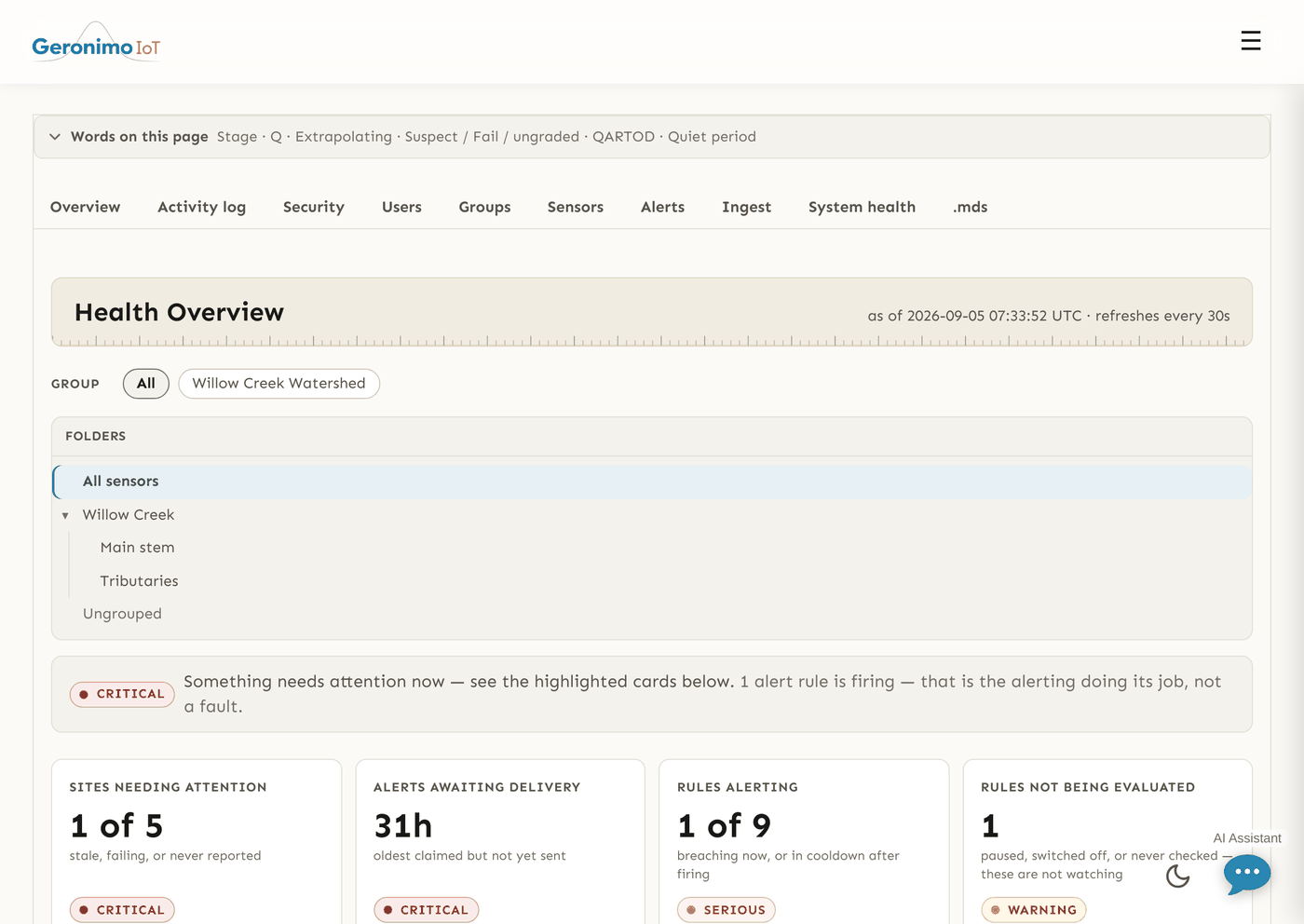
Health Overview answers "is anything wrong" before you look at any data. A banner at the top says whether everything is clear; under it, tiles that need attention are separated from tiles that are clear — Sites needing attention, Rules alerting, Rules not being evaluated, Alerts awaiting delivery, Sensors not watched for downtime, Alert evaluation (how long since the evaluator last ran), and so on. Below the tiles are two tables: every site's ingest state (last data, how overdue it is against its stale threshold, polling interval, last attempt, failures), and what each alert rule has been doing (state, how long, last fired, fires in 7 days). Each row of both carries a chart button — readings on a site, visualize on a rule — which draws that series in place without leaving the page. There is no longer a third table of background services; the evaluator's own heartbeat is the Alert evaluation tile above. A Group filter and the folder tree narrow all of it. A rule that is firing is listed as the alerting doing its job, not as a fault.
Accounts and signing in
There are three ways an account comes into being, and which ones you see depends on how your administrator has set the deployment up:
- An invitation link. A superuser mints an account invitation from the admin console; you receive an email with a signed link that is valid for 48 hours (2 hours when the invitation would create an administrator) and is pinned to your address, so it can be redeemed once. Group owners can also invite an email address that has no account yet, from their group page, as long as they have an invitation allowance left — the invitee gets a link to create an account and joins that group directly.
- Self-service registration. When open signup is switched on, the login page shows Need an account? Create one. You register with an email address and confirm it from a link that is valid for 72 hours. Your administrator may have this switched off, in which case the link is simply not there.
- The guest account. A deployment can offer Sign in to the guest account on the login page: a shared, read-only tour of whatever the guest's group can see. Everything that would change something is refused on that account — you will see "The guest account is read-only" and stay on the page you were on. If buttons seem to do nothing, check whether you are signed in as the guest.
Two-step login. From Your profile, Two-step login lets you add an Authenticator app (a six-digit code from Google Authenticator, Aegis, 1Password or similar) and prints Recovery codes for when the phone is lost. A Text message factor is shown on the same page but is greyed out until the server has an SMS provider configured; the card says so. You can also see and forget Remembered browsers. A group owner can require two-step login for everyone in the group.
Passwords. Change your password is on your profile. If your administrator has enabled email resets, the profile and login pages also offer Forgot your password?.
Groups, permissions and folders
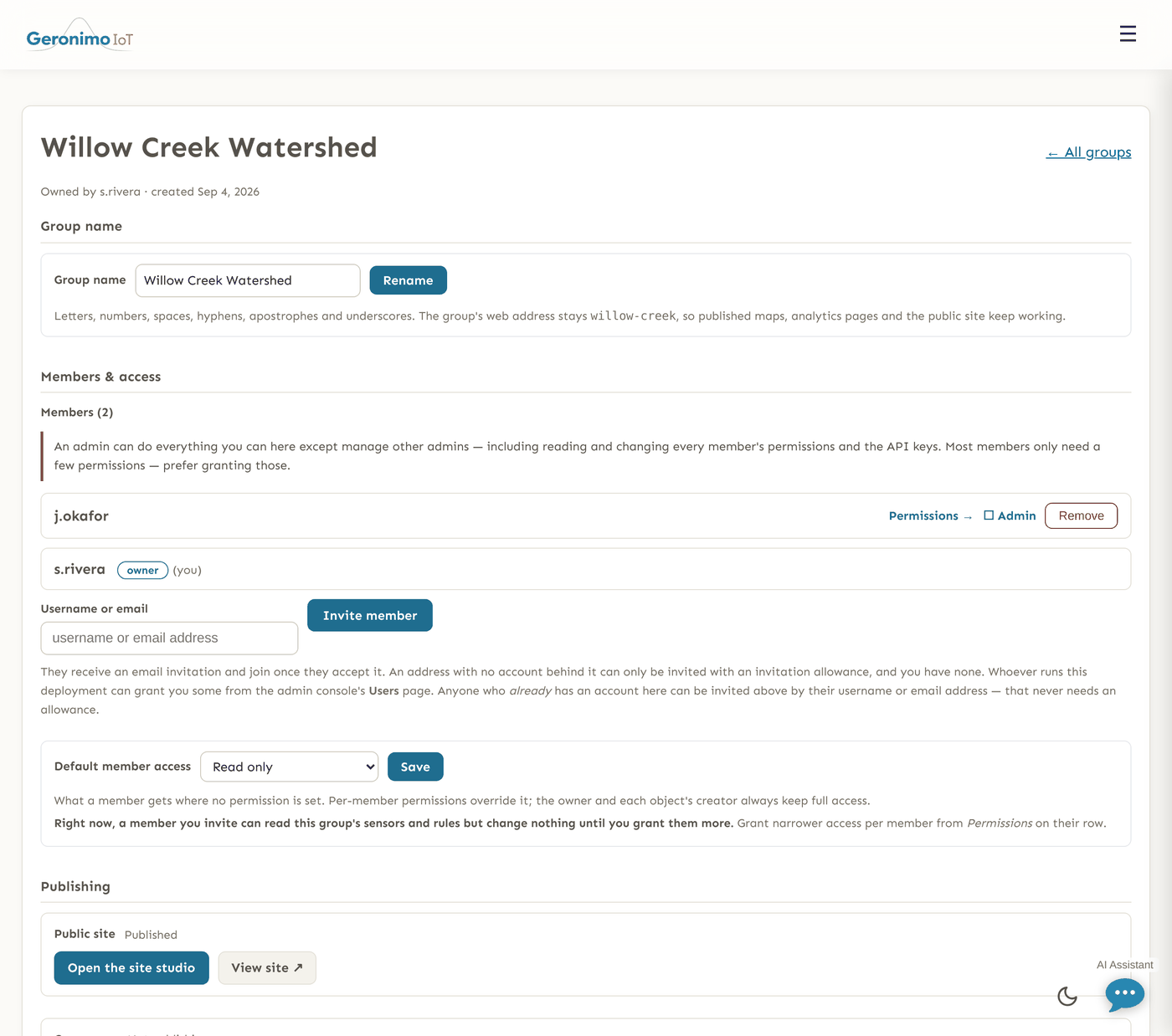

Everything you create — sensors, rules, maps, pages, curves — belongs to a group, and members of a group can see each other's work. Your profile lists your groups; the owner badge marks the member who created it and can manage it, and + Create a group starts a new one with you as owner. When you are in more than one group, the one shown under your name in the bar is your default group: the one a new sensor lands in unless the form offers you a choice.
On a group's page the owner can rename it, Invite member (the invitee joins when they accept the email), and set Default member access — Read & edit everything, Read only or No access — which is what a member gets wherever nothing more specific is set. Per-member permissions then refine that by area (sensors, views, alerts, QC, rating, logs, assistant) and, narrower still, by folder or single item, so you can open one sensor inside a closed area or close one inside an open area. The owner and each object's creator always keep full access. The same page holds the group's Public site switch, which publishes the group's public maps and pages at a fixed address, and its login-security (two-step) policy.
Your own public site. Every group gets a page at /site/<your-slug>/ that lists its publicly shared maps and analytics pages, with a tagline, a description and a nav-bar logo for light and dark mode. Settings → Landing page opens the site studio, a workspace where the owner builds the whole page instead (the group's own settings page links to it too, beside the Public site panel that reports whether it is published; if you are in more than one group the tab asks which one the first time, then remembers, and a picker in the studio's header moves between them): choose and order sections (a hero with a background photo and buttons, text with a picture beside it, side-by-side columns, numbered steps, a card grid, a picture, a gallery, a set of links, a call to action, your published maps, your published analytics pages, your published dashboards, or one dashboard rendered live), tick which of the platform's pages appear in the nav bar and rename them, add your own links, write the footer with GitHub, LinkedIn, email and website links, and upload pictures into a library the sections draw from. Every section also has a Size & spacing panel — background colour, how much air it keeps above and below, a minimum height, and where its content sits inside that height — and in a side-by-side row you set the two column widths by dragging the handle between the halves (or focusing it and using the ← and → keys); a card grid can additionally be told how many cards to put across and whether to paint its full-width band. A picture in a card or on its own can either fill its frame (cropping to the edges) or show whole, and a picture on its own can be resized by dragging the corner of it. A link whose kind carries a recognisable mark — GitHub, LinkedIn, Instagram, email, website — no longer needs a label: leave it empty and the icon stands alone. Any section can have pictures behind it, and a Gallery section puts them in front instead, either one at a time or all at once. More than one picture becomes a slideshow with ‹ › arrows, dots and a pause button; each picture carries its own description for screen readers, which is required rather than optional, and a visitor whose system asks for reduced motion sees the first picture and nothing moves until they move it. A picture chosen as the Mark on the sign-in page replaces the Geronimo IoT wordmark at /site/<your-slug>/login/, which is the ordinary sign-in wearing your group's bar and footer. Load Geronimo template starts you from a copy of this deployment's own landing page with your group's name on it, Start simple from a plain one, and Start from a template under the section palette offers fuller worked examples — a whole monitoring-group page, again with your own name already in it. All three load into the studio rather than saving, so nothing is committed until you press Save and Undo still works; pictures are never carried over, because a picture belongs to one group's library, and the sections that had one say where to put yours. Everything on the page is plain text and checked links — no scripts, frames or SVG — and Reset to the default page returns to the standard listing at any time. Publishing, the tagline and the logos are set in the studio as well. Opening it needs read access to Settings for that group; saving anything is for the group's owner and admins, so a member with read access can explore the studio but not change the page.
Folders organise sensors inside a group. They nest, and the same tree appears on Sensors, Settings, Alerts, Data quality, Rating curves and Exports: click a folder in the Folders panel and the list narrows to sensors filed in it (or in a folder under it); Ungrouped shows what is not filed anywhere. A folder-scoped permission grant applies to everything below that folder, so filing a sensor into a folder is also a way of deciding who may touch it. Create folders with + New folder on any of those pages, and move a sensor with the Move to folder picker on its card.
Your profile
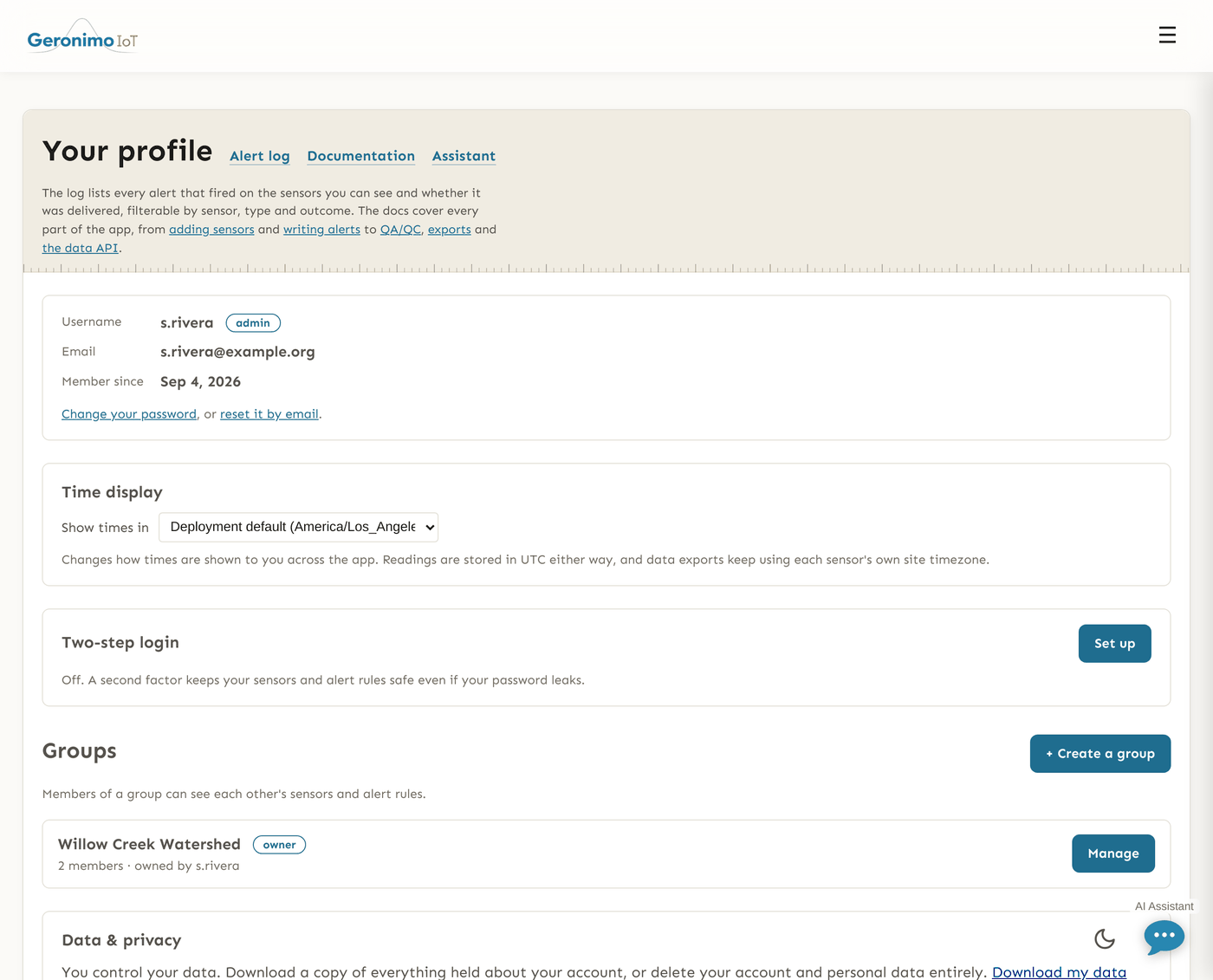
Your profile is where the per-person settings live: Show times in (the timezone every page displays times in — readings stay in UTC and exports keep each sensor's own site timezone), Two-step login, your groups, and Data & privacy, where Download my data returns a JSON file of everything held about your account and Delete my account removes your name, email and second-factor details (the monitoring records you created stay, anonymised). The top of the page links to the Alert log — every alert that fired on sensors you can see and whether it was delivered — and to the Documentation and the Assistant.
Where to go next
- Adding sensors — register a sensor, choose its data source, set its downtime alarm and maintenance schedule.
- Install a new sensor — the Mayfly walk-through, from the server entry to a device that uploads.
- Settings: sensors, variables, maps & pages — labels, units, observed properties, plot/map/analytics switches and stations.
- Analytics & analytics pages, Maps & the map builder and Dashboards — what to build once the data is flowing; the open map for listing a public sensor platform-wide.
- Alerts overview, then static & moving-average, advanced (ML), compound and LLM alerts.
- Data quality, Rating curves and Exports — data quality and products.
- AI assistant and the API documentation.
- Community board — questions, builds and field notes shared across the deployment; Terms, privacy & cookies — what is collected and who sees what.