
Visualise & share
Maps & the map builder
Build a map: basemap, pins, GeoJSON or shapefile layers, and who can open it.
What a map is
A map is a saved viewport — centre, zoom and basemap — with a set of your sensors pinned at their stored coordinates and any overlay layers you upload, published at its own address, map/<group>/<map>/. Build one when a watershed, a project or a field crew needs its own picture of the sites. A sensor can sit on any number of maps, and a map can be opened by your group, by anyone with a password, or by anyone at all.
Pins come from the coordinates on each sensor's card on the Settings page; the map builder can also move them. See Settings & variables for coordinates and the Show on map switch.
The maps hub
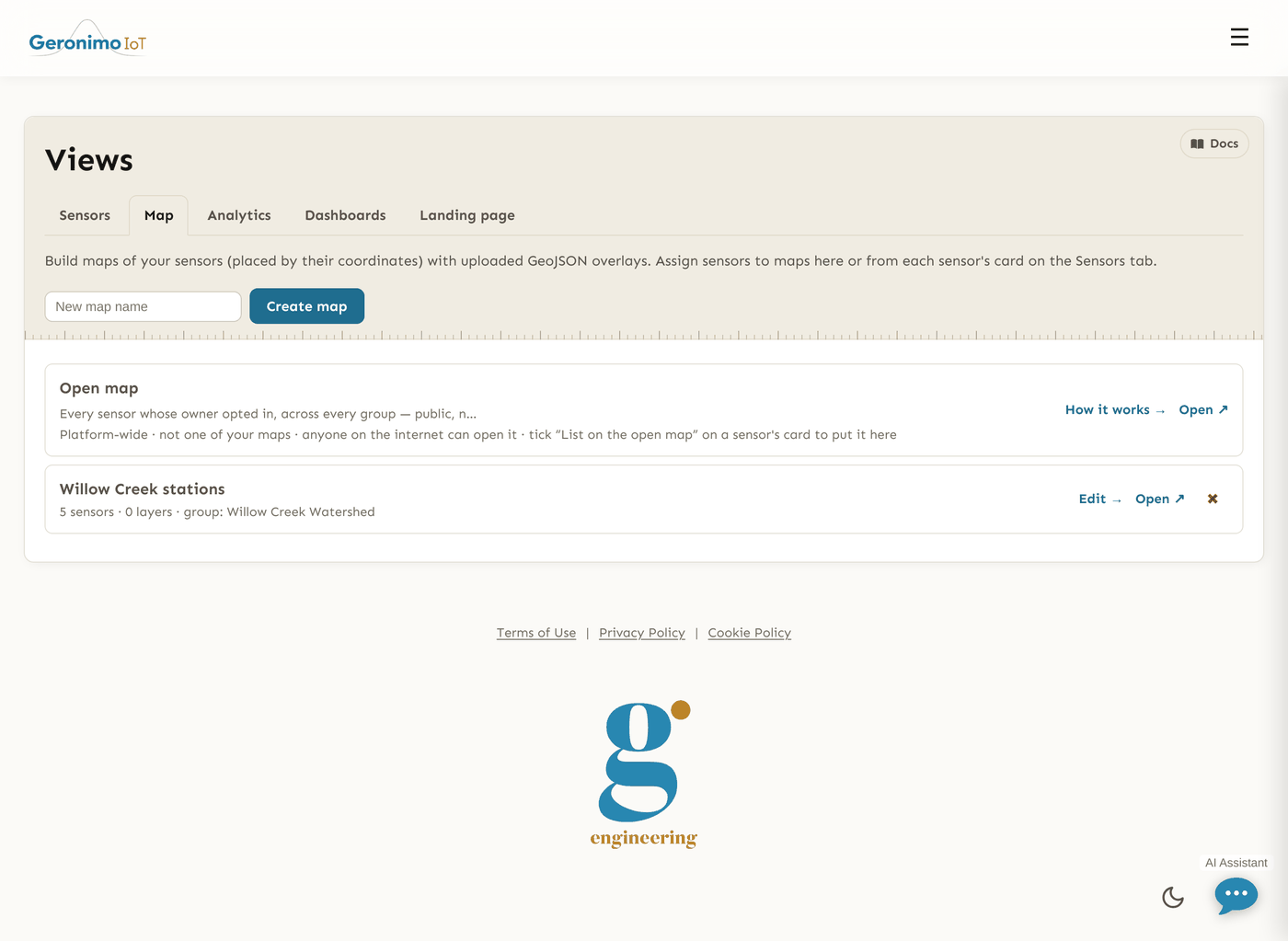
Open Settings and choose the Map tab (maps). Type a name into New map name and press Create map: the map is created in your first group and its builder opens.
The first card on the hub is not one of your maps: it is the platform-wide open map, tagged Platform-wide and set apart, with Open ↗ for the map itself and How it works → for its documentation. There is nothing to edit, share or delete on it — a sensor appears there only when its owner ticks List on the open map on the sensor's own card. Your group's own maps are the rows below it, and the count of those is what the empty message talks about. Signed out, the same idea is the one Maps item in the public bar, which leads to the open map because a visitor has no hub.
Each of your own rows shows the map's description, counts and group, with Edit → (Builder → with read-only Settings rights: the builder opens without any control that would save), Open ↗ for the rendered map, and a ✖ that deletes the map, layers included, after a confirmation. A sensor can also be put on maps from its own card on the Sensors tab, under the Maps fold-out.
The map builder
The builder is a form beside a live map. Everything on the left except layer uploads, layer removal and sharing is saved by the single Save map button at the bottom of the form. ← All maps and Open map ↗ sit in the title band.
Settings
| Field | Notes |
|---|---|
| Map name | Up to 100 characters. The address slug follows the name and is kept unique within the group, so renaming changes the link. |
| Description | Standing text about what the map shows, up to 4,000 characters. Shown on the hub row and, folded behind a Notes summary, on the rendered map. |
| Current notes | What is going on now — conditions, field work. Up to 4,000 characters, printed unfolded under the map's title row so a returning viewer re-reads it. Both texts are visible to everyone who can open the map, including anonymous visitors to a shared link. |
| Basemap | Light (default), Satellite or OpenStreetMap. The builder's map switches as you choose. |
| Center lat, Center lng, Zoom | Where the map opens. Zoom is 1–20. Type numbers, or pan and zoom the preview and press Use current map view to copy its position into the three boxes. |
Sensor pins
One style for every sensor pin on this map: Shape is Circle (default), Square, Triangle, Diamond, Star, Cross or Pin; Size is a slider from 6 to 48 (default 16); Colour is a colour picker (default blue). A swatch beside the controls, and the pins on the preview, follow the choice before you save. The same symbol appears as the key in the rendered map's legend.
Sensors on this map
Tick a sensor under Sensors on this map to place it. The list holds every sensor you can read, each with a field-notes icon when it has notes. A sensor with coordinates shows its pin on the preview (grey until ticked). For a site you may move, Latitude and Longitude boxes appear and the pin is draggable — drag it and the boxes update; type and the pin moves. A site never placed shows no coordinates yet and a Place here button that drops it at the centre of the current view for you to drag home. Sensors you may not move show their coordinates as text.
Note. Coordinates belong to the sensor, not the map. Moving a pin here rewrites the sensor's latitude and longitude everywhere, and needs the same edit right the Settings page asks for. Instruments at a station share one pair of boxes marked moves with station: dragging any of their pins moves the station and every instrument on it. Clearing both boxes unplaces the site and also turns off its Show on map flag, since a flag with no coordinates behind it would be a claim the standing map cannot draw. Saving reports how many sites and stations moved.
You may place any public sensor you can read. A private sensor can be placed only if you could publish it yourself, which is what stops a read-only member republishing someone else's coordinates through a shared map.
GeoJSON layers
The GeoJSON layers panel adds overlays — a watershed boundary, a stream network, sampling reaches. Give the layer a Layer name, choose a file under GeoJSON or zipped shapefile (max 200 MB) and press Upload layer. The upload is stored straight away; it does not wait for Save map.
| Upload | What is accepted |
|---|---|
GeoJSON (.geojson, .json) | A Feature, FeatureCollection or bare geometry in geographic (longitude/latitude) coordinates. It is validated and stored as-is; feature properties are kept and escaped when shown. |
Zipped shapefile (.zip) | One .shp per archive with its .shx, .dbf and, ideally, .prj. It is converted to GeoJSON on the server; .dbf attributes become feature properties. Only geographic WGS 84 / NAD83 coordinate systems are accepted — a projected shapefile is refused with a message asking you to re-export it in EPSG:4326. A missing .prj is treated as WGS 84. |
The 200 MB ceiling is the default; your administrator can change it. A very large layer is still slow for the browser to draw, so simplify heavy data first. Layers are fetched by the rendered page from their own endpoint, so a big layer does not slow the page's first load.
Each uploaded layer has its own style row, saved with Save map (the panel says so):
| Control | Effect |
|---|---|
| Colour | Paints the whole layer — lines, polygon outlines and fills. Successive uploads get different default colours. |
| Points | Shape for the layer's point features: the same seven shapes as sensor pins. |
| Size | Point size, 4–48 (default 12). |
| own point colour | Untick and points follow the layer colour; tick to enable a separate point colour picker so points stand out from the lines and polygons around them. |
| Lines / Width | Dash pattern and stroke width (1–10) for the layer's lines and polygon outlines, the way points get a shape and a size. |
| Layer name | Click the name to rename the layer; the legend uses it. |
| ✖ Remove layer | Deletes the layer immediately (not undone by leaving without saving). |
The preview repaints a layer as you restyle it, and the legend swatch on the rendered map shows the symbol you chose.
The rendered map
Open ↗ (or the shared link) shows the map in the public shell, without the app's navigation. One row above the map holds the map's name (a picker when you can open more than one map), its counts and group, Edit map for editors, All maps for signed-in members, a folded How to use this map and, if there is a description, a folded Notes. Current notes, if any, are printed in full beneath.
The map itself draws every member sensor that has coordinates with the pin style you chose, and every layer switched on in a combined layers-and-legend panel — each row is a checkbox with the layer's own symbol, so the panel is the key as well as the switch. Beside the map is a card per sensor (one per station) with its latest reading, a freshness dot and seven-day averages. Click a pin to open its last 14 days of charts in a plot window; click a card to fly to that sensor; right-click the map to copy the coordinates under the cursor. A Go to lat, long box accepts a pasted pair such as 37.87087, -122.25705.
Whether a sensor appears here does not depend on Show on map — that switch governs the standing map. A saved map draws what its author ticked, minus two rules: a signed-in viewer does not see a private sensor their own grants exclude, and a shared-link visitor does not see a private sensor the map's owner could not publish. Readings reach the browser through endpoints scoped to this map, so no API token is ever sent to a visitor and nothing outside the map is reachable.
Sharing
The Sharing panel under the settings form is the same one the analytics builder carries: Private — sign-in required (your group only) (default), Shared link, password required or Public — anyone with the link, a Password box for the second, Save sharing, and a Link field with Copy. Changing or clearing the password signs out every visitor who had unlocked the map. The options, the unlock screen and the rule about private sensors are described in full under Sharing a page or a map.
The featured map
The Maps link in the public navigation opens the deployment's featured map — a saved map your administrator chose as the front door. If none is set, or it is renamed or unpublished, the link falls back to the standing map, which shows every public sensor with Show on map on. Rendered maps are built on the same layout as that standing map, so a saved map looks and behaves like it.