
Alerts
Alerts overview
The six alert kinds, the alerts hub, pausing and resuming, recipients, notifications and the alert log.
What an alert rule does
An alert rule watches one variable on one sensor (or, for compound and multi-station LLM rules, several) and tells you when a condition you wrote becomes true. The evaluate runner looks at every active rule about once a minute, judges it against the newest reading it has not already judged, opens an incident for the condition, and sends the rule's recipients an email and/or a text. When the condition clears, the incident resolves and the rule re-arms.
Every rule kind shares the same machinery for recipients, pausing, cooldowns, the status chip and the alert log; this page covers those shared parts. The four kind-specific pages cover the fields that decide when a rule fires.
The six kinds
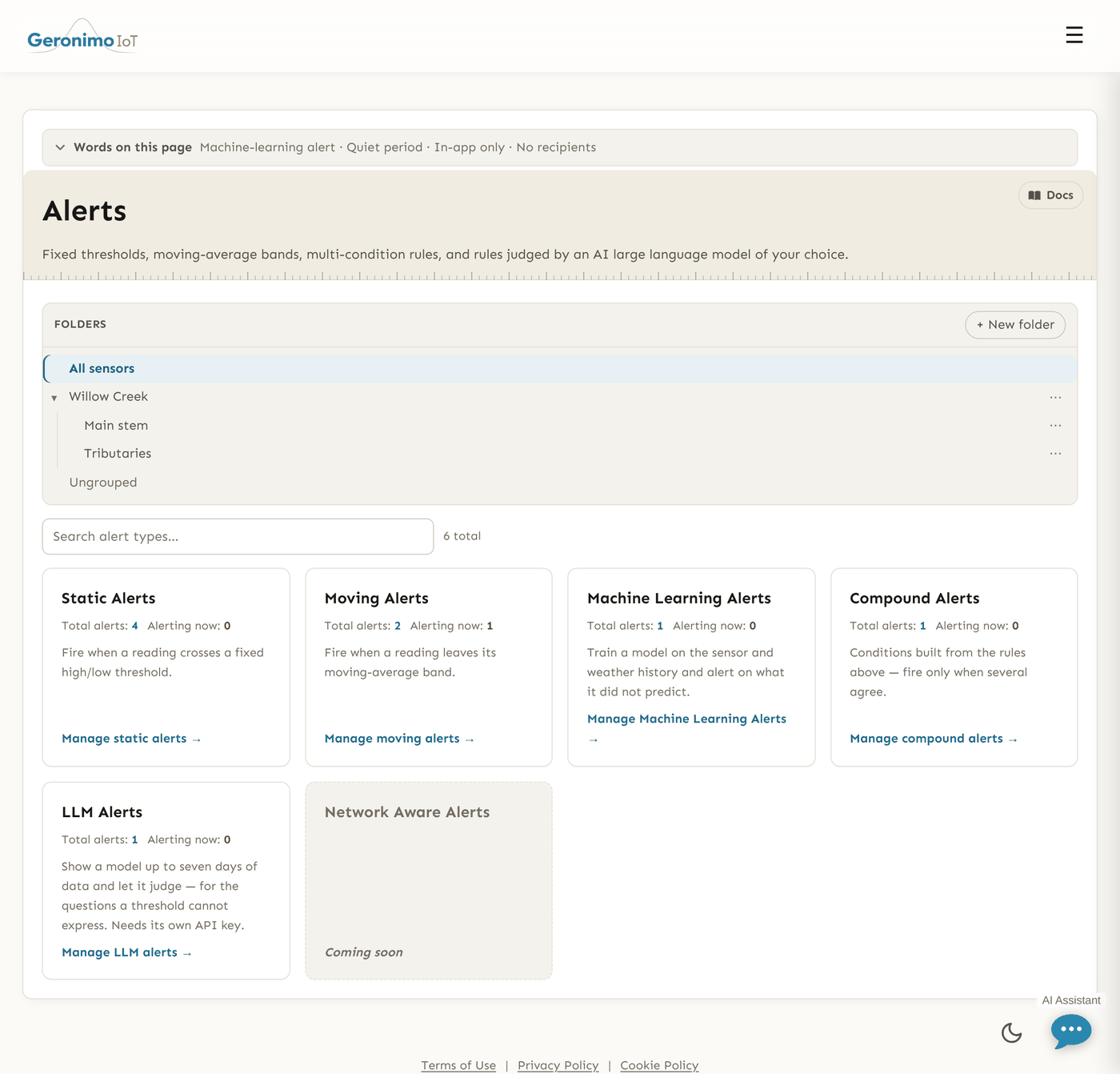
Open Alerts in the navigation and you get one card per kind. Pick the kind by the question you are asking of the data.
| Card | Choose this when | Guide |
|---|---|---|
| Static Alerts | You know the number. "Tell me when dissolved oxygen is at or below 5 mg/L" or "when stage reaches 1.2 m". Fixed high and/or low bounds, optional clear bounds so a noisy reading sitting on the line does not flap, optional alternate bounds during rain. | Static & moving-average alerts |
| Moving Alerts | You care about change relative to the recent past, not an absolute level: "turbidity 50% above its 24-hour average", or "more than 3 standard deviations from the 6-hour mean". The band moves with the data, so the same rule works on a creek whose baseline drifts with the season. | Static & moving-average alerts |
| Machine-learning alerts | The "normal" value depends on other things: time of day, air temperature, rain, another sensor upstream. The rule trains a model on the sensor's history plus weather and alerts when a reading lands outside what the model predicted. Needs a history to train on. | Machine-learning alerts |
| Compound Alerts | One signal on its own is not enough: "only page me when conductivity AND turbidity are both alerting", or "when any one of these three stage rules fires". A compound rule is built from the verdicts of other rules, combined with AND / OR. | Compound alerts |
| LLM Alerts | The question is easier to say than to write as a threshold: "does this look like a sewage spill", "is this sensor drifting". A language model of your choice is shown up to seven days of readings and asked a plain-English question. Needs its own API key, and each check costs a model call. | LLM alerts |
| Thermal Alerts | The number is not yours to choose — a regulator or a reference publishes it, in its own metric. "Page me when the seven-day average of daily maximum temperature exceeds Washington's core summer salmonid criterion", or EPA Region 10's rearing guidance, or a Putah Creek reference point. The rule cites the standard; the seven-day average (or weekly mean, or instantaneous ceiling — whichever the standard is written in) is computed on the sensor's own calendar days; the streak is counted in days. The verdict names the authority and says whether it is an adopted criterion, agency guidance or a research reference. A window with a missing day is "nothing to judge", never a breach and never a clear. | This page, and the temperature criteria shown on the analytics and QA/QC pages |
A seventh card, Network Aware Alerts, is shown greyed out as Coming soon; it is not a link.
The alerts hub
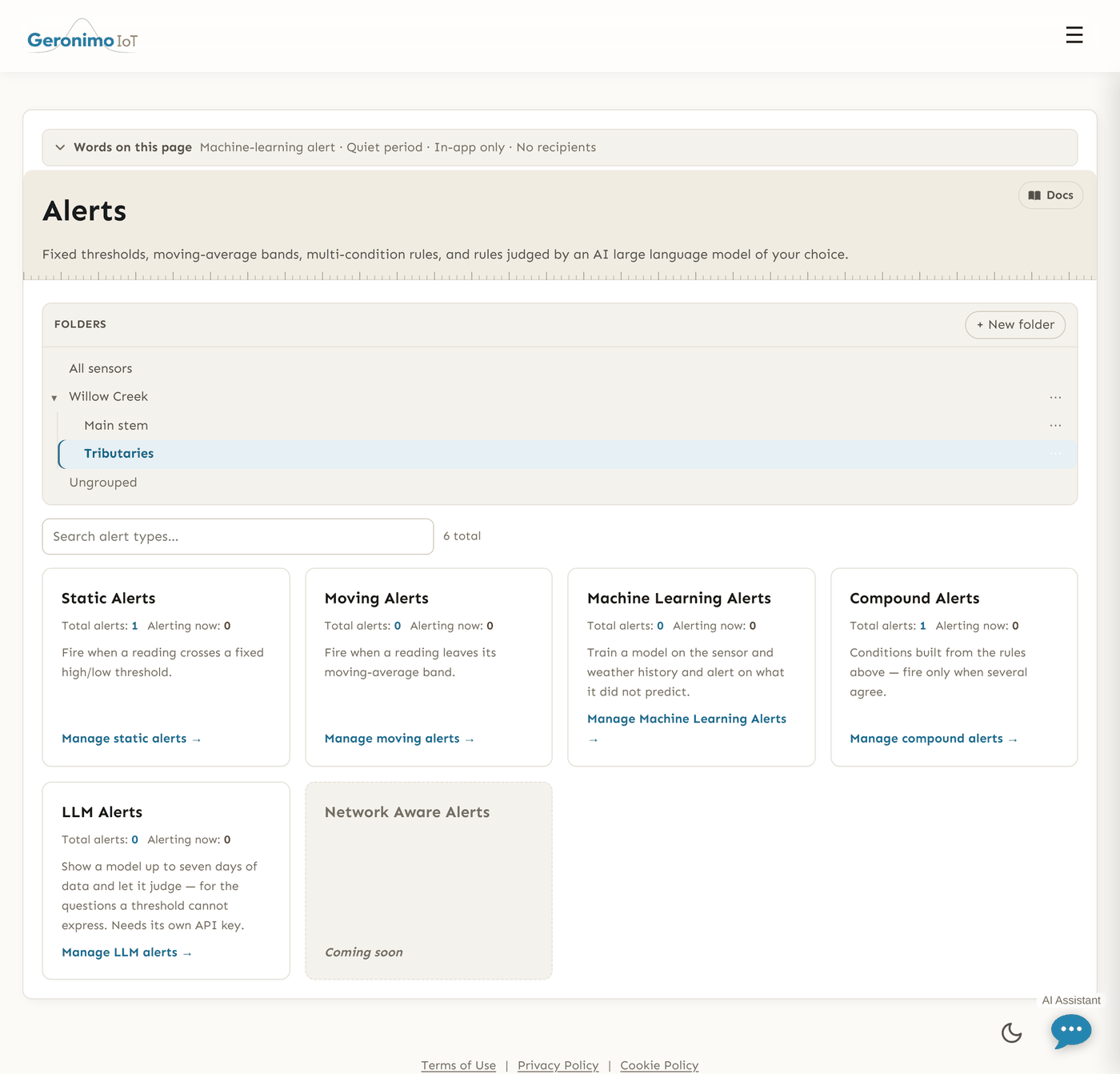
The hub page (Alerts) is a set of cards, one per kind. Each card shows Total alerts (rules you can see) and Alerting now (rules whose last recorded verdict was a breach), and links to that kind's list with Manage static alerts → and so on.
Above the cards are the same filters every list page carries:
- Folders — the shared folder tree (All sensors, your folders, Ungrouped). Picking a folder narrows the counts on the cards and the list you click through to; the filter rides along in the link. Compound rules count as "in a folder" when any rule they are built from is; multi-station LLM rules always show.
- Group — a row of chips (All plus one per group) that only appears when you belong to more than one group.
- Search — a client-side search box that filters whatever is on the page as you type.
Reading an alert list
All five list pages share one layout. From the top:
- + Create a New Alert opens the rule form for that kind.
- The folder tree, the group chips (when you have more than one group), and a search box (Search static alerts…).
- One card per rule. The title is a link to the edit form.
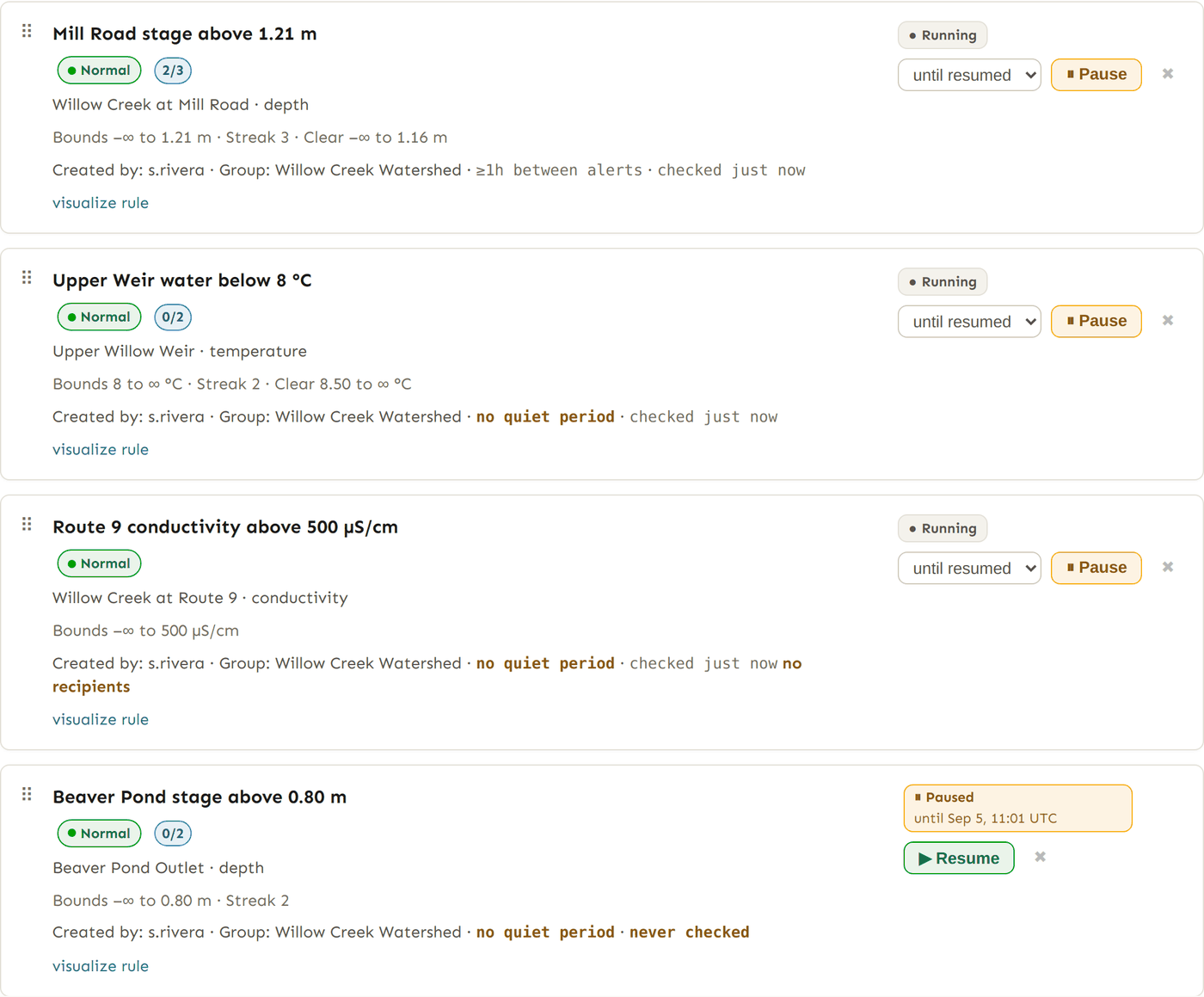
What a rule card shows
| Element | Meaning |
|---|---|
| Status chip | Alerting (the newest readings breach and the rule has paged, or may page on the next evaluation), Condition met · held by rain (amber: the readings breach but the rule skips alerts around rain and the last evaluation found rain inside its window, so nobody was paged — the detail says when it last rained and when rain is next expected), Condition met · quiet period until … (amber: the readings breach but the rule is inside the quiet period an earlier firing began, and nobody has been paged for this breach; it pages when the period ends if the condition still holds), Normal, No data (nothing recorded for that variable yet) or No recent data (the latest reading is older than a day, so the current state is unknown). Hover it: the tooltip gives the latest value, the bounds or band it was judged against, the streak and the reading's timestamp. ML rules add Not trained, Model stale and Not checked yet. |
| Streak badge | Only when Min consecutive breaches is above 1: 2/3 means two breaching readings in a row out of the three required to fire. |
| Site · variable | Which sensor and which variable the rule watches, e.g. North Fork · Turbidity (NTU). |
| Created by · Group | Who owns the rule and which group it belongs to; that decides who can see and edit it. |
| Quiet period | How long the rule stays quiet after it fires: ≥15m between alerts, ≥3h between alerts. A rule with this set to 0 or left blank reads no quiet period in amber, because it can page again on the very next evaluation for as long as the condition holds. |
| Last checked | checked just now / checked 4 minutes ago — when the runner last reached a verdict. never checked means the runner keeps walking past this rule: its variable has no data, its column is missing, or (ML) it has no trained model. A rule that says this looks healthy and is not running. |
| Recipients | Nothing is shown when the rule has recipients. no recipients in amber means the rule has no address and no number: it still evaluates, fires and recovers, it just tells nobody. in-app only in grey means the author ticked No recipients — show in the app only, so the silence is deliberate. |
| visualize rule | Opens a modal chart of the sensor's real readings with the band the evaluator is judging them against, over 24h / 3d / 7d / 30d. The status chip says whether the rule is breaching; this shows whether the bound is anywhere near the data. |
| State badge and controls | On the right of the card: Running, Cooling down, Paused, Off or Stopped, with the Pause / Resume / end quiet period / Delete controls. See Pausing, resuming and cooldowns. |
Note. Four of the five lists — static, moving, ML and LLM — have a drag handle (⠿) for putting rules in the order you want, and the sensor list has one too. The compound list does not: it has no stored order and shows no handle, so it lists rules in the order they were created.
One clock. Every time on the alert pages — a card's fired … and until …, the alert log, the LLM detail page — is shown in your display timezone (Your profile → Timezone; the deployment default until you set one) with the zone's abbreviation after it, e.g. Sep 5, 16:53 PDT. Hover any of them for the same instant in UTC.
Pausing, resuming and cooldowns
The badge on the right of each card tells you which of four states the rule is in, and offers only the controls that make sense for it.
| Badge | What it means | Controls offered |
|---|---|---|
| ● Running | Evaluated every cycle; will fire when its condition holds. | ⏸ Pause with a duration |
| ◔ Cooling down | The rule fired and is inside a quiet period. Nobody paused it. The detail line says fired … and either until … (a timed quiet period) or until the condition clears (the incident engine's once-per-excursion quiet — see below). | end quiet period, and ⏸ Pause |
| ⏸ Paused | A person paused it. Not evaluated, will not fire, until resumed or until the timed pause ends. | ▶ Resume |
| ⊘ Off / ⊘ Stopped | Inactive with no record of who turned it off. Stopped is an LLM rule that switched itself off after repeated provider failures; the tooltip carries the last error. | ▶ Resume |
Pause durations. The dropdown beside ⏸ Pause offers until resumed, 1 hour, 24 hours and 1 week. A timed pause ends by itself; until resumed waits for you. Pausing an LLM rule also stops it spending on model calls.
Resume vs. end quiet period. ▶ Resume undoes a pause. end quiet period is for a rule that is cooling down: it cuts the quiet short so the rule may page again on the next evaluation. They are separate buttons because they undo different things; pressing "resume" on a rule nobody paused used to be the only way to shorten a cooldown, which was confusing.
Delete is the ✖ at the end of the controls; it opens a confirmation page with a Delete button.
Note. Pausing, resuming and deleting need edit rights on alerts. A read-only member (including the guest account) can open the pages but the buttons do nothing for them.
Three kinds of quiet
A rule can be quiet for three reasons, and the card words them differently so you can tell which:
- The rule's own quiet period — Time between alerts on the form. After a firing the rule will not page again until that many minutes (hours for ML, compound and LLM rules) have passed. Shown as Cooling down · until ….
- Once per excursion — the incident engine. The first breach of a condition opens an incident and pages; every repeat breach of that same open incident stands down, however long the excursion runs. Once the rule's own quiet period has expired the card shows Cooling down · until the condition clears. When the reading comes back inside the bounds the incident resolves, the rule re-arms at once, and the next breach is news again.
- A pause — yours, and only yours. Paused.
Recipients
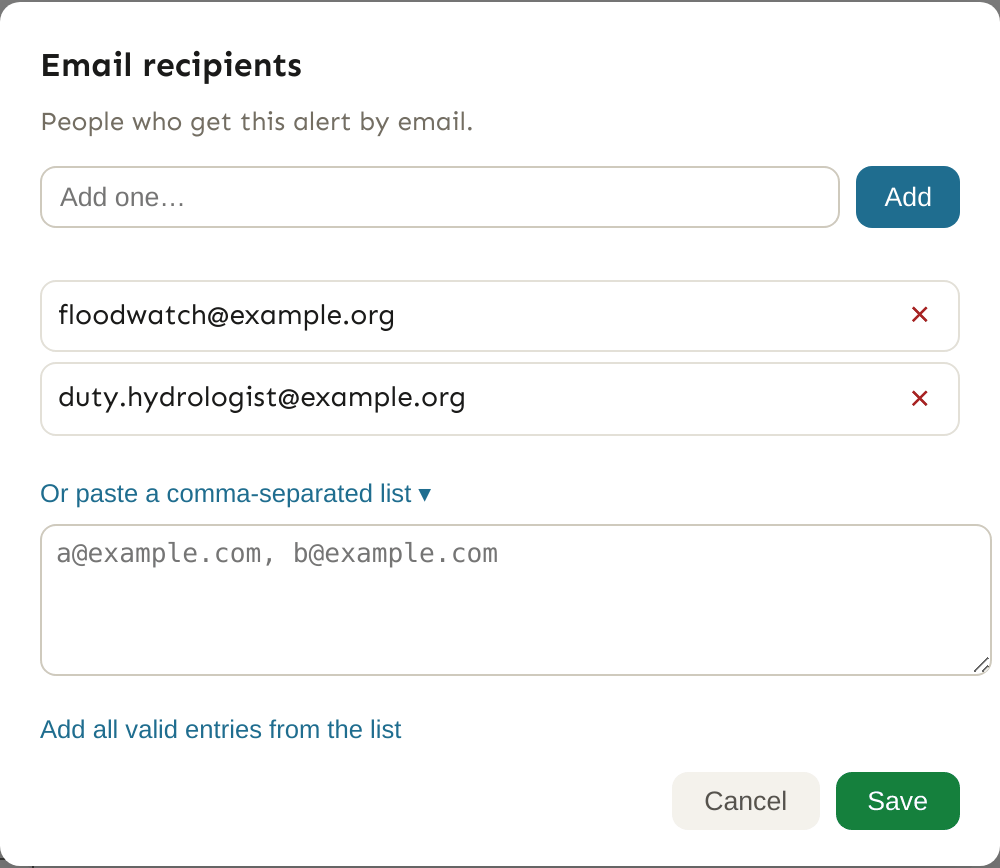
Every rule form ends with Email list, Text list and the checkbox No recipients — show in the app only. The two lists are comma-separated, but you do not type into them directly: each has a Manage recipients button that opens a small dialog.
- Add one… plus Add (or Enter) adds a single address or number after checking it looks valid — an email needs an
@and a domain, a phone number needs 7–15 digits. - Or paste a comma-separated list ▾ reveals a box for a pasted list; Add all valid entries from the list keeps the valid ones and tells you which were skipped.
- Each entry has a × to remove it. Save writes the list back to the form; Cancel discards the changes. The form itself still has to be submitted.
Phone numbers are sent through Twilio, which needs a country code: enter 15105551234, not 510-555-1234. Non-digits are stripped and a + is added for you.
Tick No recipients — show in the app only when a rule is meant to be read on the list and the Health page rather than to page anyone. The form refuses the tick while either list still has an entry, so the two cannot contradict each other. Leave it unticked on a rule with empty lists and the card flags no recipients as a fault, because usually it is one.
Notifications
When a rule fires and the incident is new, one email goes to every address on the rule (recipients are not shown each other's addresses) and one text goes to each number. Delivery is recorded per channel in the alert log; a failed channel is retried, and a recipient who already received the page is not re-sent on the retry.
What the message says. The email subject is Creek Alert <site> <variable>: <value><unit>. The body gives the site, variable and reading, a 48-hour mean ± standard deviation when there is enough data, the rule's band (Alert band: upper 20.0, lower 2.0 for a static rule), and a Chart: deep link to the analytics chart for that sensor — the advanced-analytics chart for ML rules — so the reader can open the data from the mail. The text message carries the site, variable and reading and the same chart link. LLM rules compose their own message: the model's reason is the body, and no chart link is appended. Compound rules send COMPOUND ALERT MET: <title> — (a OR b) AND (c).
SMS is sent only when your administrator has configured Twilio; until then the SMS column in the log reads a "no credentials" failure and email is the only channel. Email is sent from the address your administrator configured, so add it to your contacts or check your spam folder the first time.
No all-clear message. When the condition ends the incident is resolved and the rule re-arms, but nothing is sent to say so. Look at the card's status chip or the Health page.
Escalation. The platform can hold a per-group escalation ladder (after N minutes unacknowledged, tell these people on this channel, with an optional repeat of the last rung). There is no page for building one yet; it is set up by your administrator, and with no ladder configured nothing escalates.
Incidents and acknowledgement
Behind each firing is an incident: a record that this rule's condition became true on this sensor, when it was first seen, when its page was delivered, and when it cleared. Incidents are what make a rule page once per excursion rather than once per reading, and they drive the Cooling down · until the condition clears badge and the Health page's Alert rules — what each one has been doing table (Health).
An incident has three states: Open (the condition is true now), Acknowledged — someone is on it, and Resolved (the condition cleared; this happens automatically when a reading comes back inside the rule's bounds). There is no Acknowledge button in the app. The acknowledged state exists in the engine — it is what would stop an escalation ladder — but nothing on a card or list lets you set it today, so in practice an incident goes from Open to Resolved on its own. If you want a rule to stop paging while you deal with it, pause it.
One warning rides on top of the state badge: ⚠ never delivered · since …. It means an incident is open and its opening page never landed on anyone — the rule has no reachable recipients, or every send failed. Because the engine will not re-page an already-open incident, this does not clear on its own: add a recipient or fix the address, then press end quiet period so the next evaluation pages.
Rain and weather lookup
Static, moving and ML rules can change their behaviour around rain, because a storm is exactly when a creek sensor legitimately goes out of range. The settings live behind the Rain & weather settings button on the rule form and start with a location: the field labelled Zip code or coordinates accepts a 5-digit US ZIP (or ZIP+4) or latitude,longitude such as 37.8719,-122.2585. Weather comes from Open-Meteo, which is an aggregator of numerical weather models rather than a gauge network: it is a modelled value for a grid cell of roughly 1–25 km, typically a few kilometres from the point you name, so precise coordinates buy no extra accuracy and the figure should never be reported as a measurement. Which model answers is a per-rule setting in the same panel — see where the weather comes from. With no location the rule ignores rain entirely. The fields themselves are described on the static & moving-average page.
The alert log
The Recent Alert Events page is the history of every alert that fired on the sensors you can see, and whether its notification was delivered. Reach it from your name at the end of the navigation bar: Your profile → Alert log. It is the first place to look when you think a rule should have fired and nothing arrived.
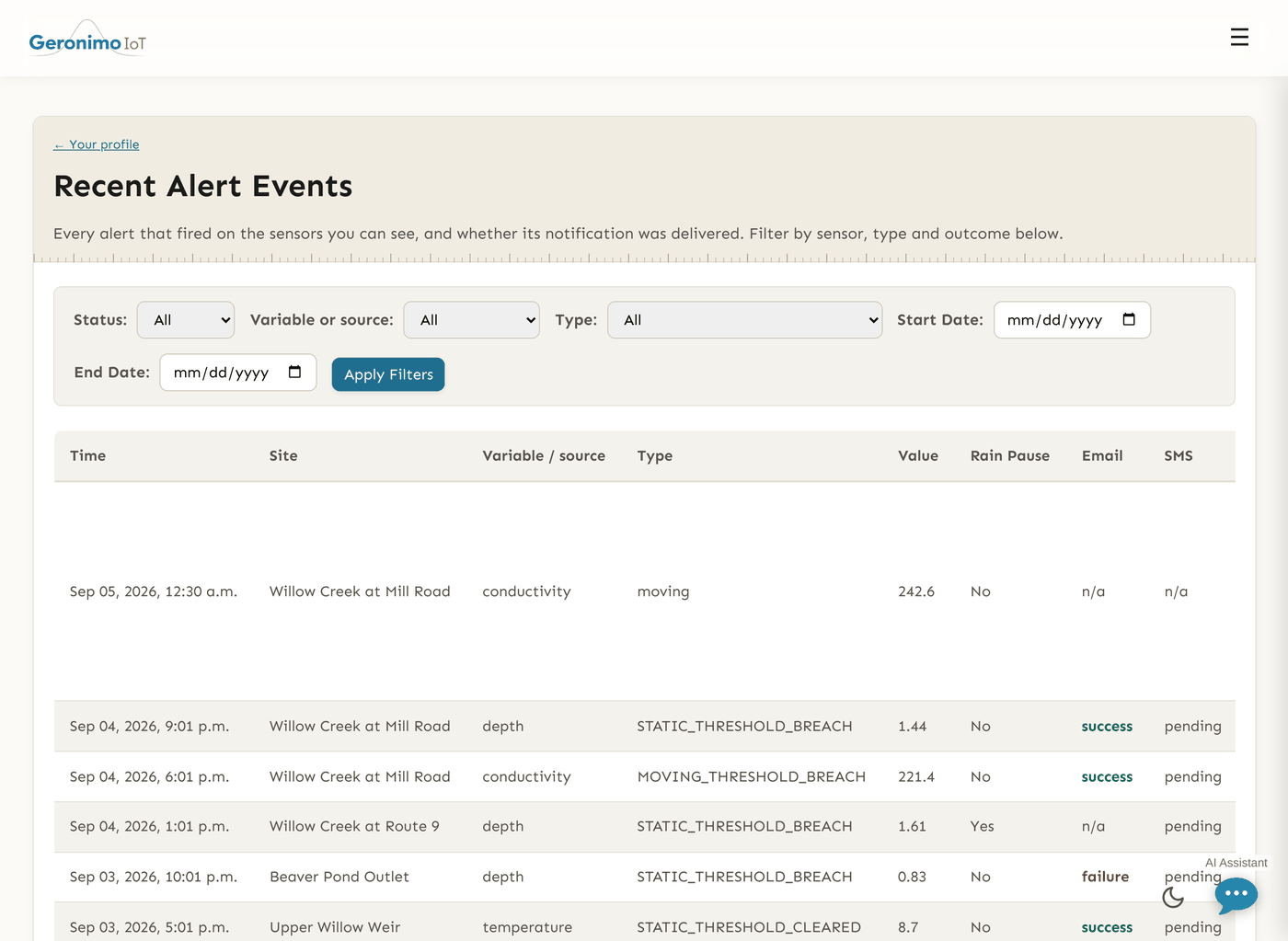
Columns
| Column | Meaning |
|---|---|
| Time | When the event was recorded. |
| Site | The sensor the event concerns. |
| Sensor | The variable (e.g. Turbidity), when there is one. |
| Type | The kind of event: a rule firing (static, moving, …), a rain-suppressed firing (static_rain_suppressed), an ingestion failure or recovery, and so on. |
| Value | The reading that was judged. |
| Rain Pause | True when the rule's rain window was active at the time, which for a rule set to skip during rain is why nothing was sent. |
| Email / SMS | The outcome on each channel: success, failure or n/a (nothing was attempted — no recipients on that channel, or the channel is not configured). The reason for a failure or a skip is written into Notes (for example SMS: skipped_no_recipients), not into these columns. |
| Notes | Free text: the rule's verdict, the rain timing (Last rain: 3.2h ago, Next rain: inf h), and any error. Read this column first when troubleshooting. |
Filters
- Status: All, Success, Failure. This matches the SMS column's recorded outcome exactly, so for an email-only rule leave it on All and read the Email column.
- Sensor and Type: dropdowns populated from the values that actually appear in your events.
- Start Date / End Date: inclusive; an unparseable date is ignored rather than refused.
Press Apply Filters; results come 25 to a page with first / previous / next / last links that keep your filters.
Troubleshooting
If you expected an alert and nothing arrived, work down this list:
- Is the sensor reporting? A status chip of No data or No recent data, or a card that says never checked, means there was nothing new to judge. Check the sensor on Sensors.
- Is the rule running? A Paused, Off or Stopped badge means it is not evaluated. Resume it.
- Is it in a quiet period? Cooling down means it already paged for this excursion or is inside its Time between alerts. Use end quiet period if you want it to page again now.
- Was it suppressed by rain? Look for a
…_rain_suppressedrow in the alert log with Rain Pause =True. Shorten the pre/post-rain hours or switch the rule to alternate thresholds. - Is the bound where you think it is? Press visualize rule on the card. A rule whose bound sits far above the data never fires; a streak requirement of 3 on a sensor that reports hourly waits three hours.
- Can it reach you? An amber no recipients or a red never delivered badge on the card means nobody was paged. Open the rule, check the lists under Manage recipients, and make sure phone numbers carry a country code.
- Did the send fail? In the alert log, read Notes: failure_no_creds on SMS means Twilio is not configured; failure_send_error on email means the mail server refused it — tell your administrator. Check your spam folder: alert mail comes from a shared sender address.
- Was it edited recently? Saving a rule clears its "already judged" watermark, so the next evaluation re-judges the latest reading against the new settings within about a minute.