
Data quality & products
Data quality (QA/QC)
Automated QARTOD-style tests, manual flags, corrections, gap fills, review periods, the change history, and backfilling or uploading older readings.
When to use Data quality
The section this page describes used to be called QA/QC — quality assurance and quality control — and that is still what the discipline is called in a laboratory or an agency submission. The navigation says Data quality, because an unexpanded acronym in a menu tells a newcomer nothing about what is behind it. Both names mean this section; only one of them is used in the interface.
Use the Data quality section when a record has to be defended, not just looked at: before you submit data to CEDEN or WQX, before a discharge series is published, or whenever a sensor has been fouled, iced, moved or recalibrated and the readings need a human decision recorded against them. It does three things for every sensor you can reach: it grades new readings automatically against the tests you configure — a sensor is re-graded within seconds of its data arriving, and a sweep every 15 minutes catches anything missed — it lets you override, correct and fill by hand, and it keeps an audit trail of every one of those decisions that you can reverse.
One rule underlies all of it: the raw value is never changed. Every grade, correction and fill is written alongside the reading, so the measurement the instrument reported is always still there and any edit can be undone cleanly.
What the flags mean
Every reading carries one quality flag, numbered the way QARTOD numbers them — the IOOS Quality Assurance / Quality Control of Real-Time Oceanographic Data standard, which is where the flag codes and most of the tests below come from. Exports and the public APIs publish the same codes, so a recipient can read them without a key from you.
| Flag | Code | Meaning |
|---|---|---|
| Good | 1 | Passed every test that was applied. Drawn as a filled circle on the workbench chart. |
| Not evaluated | (none) | No verdict yet: automated QC is off for the variable, no test has a threshold, or the reading arrived and has not been graded. The workbench counts these as ungraded. This is deliberately distinct from Good — a series nobody has checked must not look clean. |
| Suspect | 3 | Tripped a test that says the value may be wrong. Kept and plotted, but a human should look. Drawn as a triangle. |
| Fail | 4 | Tripped a test that says the value is wrong. Dropped from analytics summary statistics and marked bad in every export. Drawn as an ×. |
| Missing | 9 | No usable value — the reading was deleted by a correction (the raw number is still stored). |
A reading also records which tests tripped (for example range, spike or range,band) and whether its flag was set by a person rather than by the automated pass. A human flag is never overwritten by the automated pass; only a Delete correction supersedes it.
The automated tests
Six QARTOD-style tests run on every variable that has QC on ticked, plus a gap detector that finds holes in the record rather than grading points. Each test is silent until it has a threshold: ticking QC on for a variable with no limits entered grades nothing and leaves the series not evaluated rather than stamping it Good. When several tests trip on one reading, any Fail outranks any Suspect.
| Test | Settings in the workbench | Raises | What it checks, and when it is silent |
|---|---|---|---|
| Range | Min, Max | Fail | Hard physical limits in the variable's own units. Below Min or above Max fails. Leave one bound blank to skip that side; both blank turns the test off. |
| Moving band | Window (hrs), Average (Simple MA / Exp MA), Band type (% deviation / Std deviations), Lower, Upper | Suspect | Each reading is compared with its own moving average over the window; landing strictly outside the band is suspect. Uses the same band maths as moving-average alerts. Silent when the window is blank or both bounds are blank. |
| Spike | Threshold | Fail | A point that deviates from the mean of its two immediate neighbours by more than the threshold. Endpoints, points next to a missing value and points on either side of a data gap are untestable and never flagged — so a genuine flood peak after an outage is safe. Silent when the threshold is blank or zero. |
| Flat-line | Run length, Tolerance | Fail | A stuck sensor: when this many consecutive readings all sit within the tolerance of the first value in the run, the whole run fails. A run resets across a data gap. Silent when the run length is blank or less than 2. |
| Rate of change | Max / hour | Suspect | A change from the previous reading faster than this many units per hour, normalised by the elapsed time. Silent when blank or zero. |
| Multivariate | Partner variable, Primary step, Partner step | Suspect | This variable jumps by more than the primary step between consecutive readings while the partner's own step stays at or below the partner step — a lone jump without corroboration. Silent unless all three are set; the partner must be another variable on the same sensor. |
| Gap detection | Gap exceedance (min) | — | An interval between consecutive readings longer than this is a gap: shaded on the chart with a ◆ marker and offered for filling. It also tells the Spike and Flat-line tests not to compare across the gap. Left blank, the sensor's declared reporting interval supplies it (1.5× the cadence). |
Note. Tests grade the corrected value where a correction covers the reading, so an offset that brings a fouled probe back into range also clears its range failure. Readings inside an approved review period are stepped over entirely, and so are readings a person has flagged by hand.
Where the settings live
QC thresholds are set per variable inside the workbench: open a sensor, press Thresholds on a variable's panel, fill in the tests you want and press Save & re-grade. The QC on tick next to it is the master switch for the variable. Saving re-grades the whole series immediately, so the chart and the flag counts reflect the new limits as soon as the page reloads its data; the automated pass then keeps new readings graded as they arrive: each push or fetch queues a grading run for that sensor, and a 15-minute sweep covers the rest.
Unticking QC on and saving clears the series back to not evaluated rather than freezing the last verdict. Manual flags and approved periods survive either way.
The Settings page holds the variable's label, unit and observed property, which the workbench shows beside each panel but does not edit; see Settings & variables. Changing a unit there does not re-scale your thresholds, so revisit them after a unit change.
The Data quality landing page
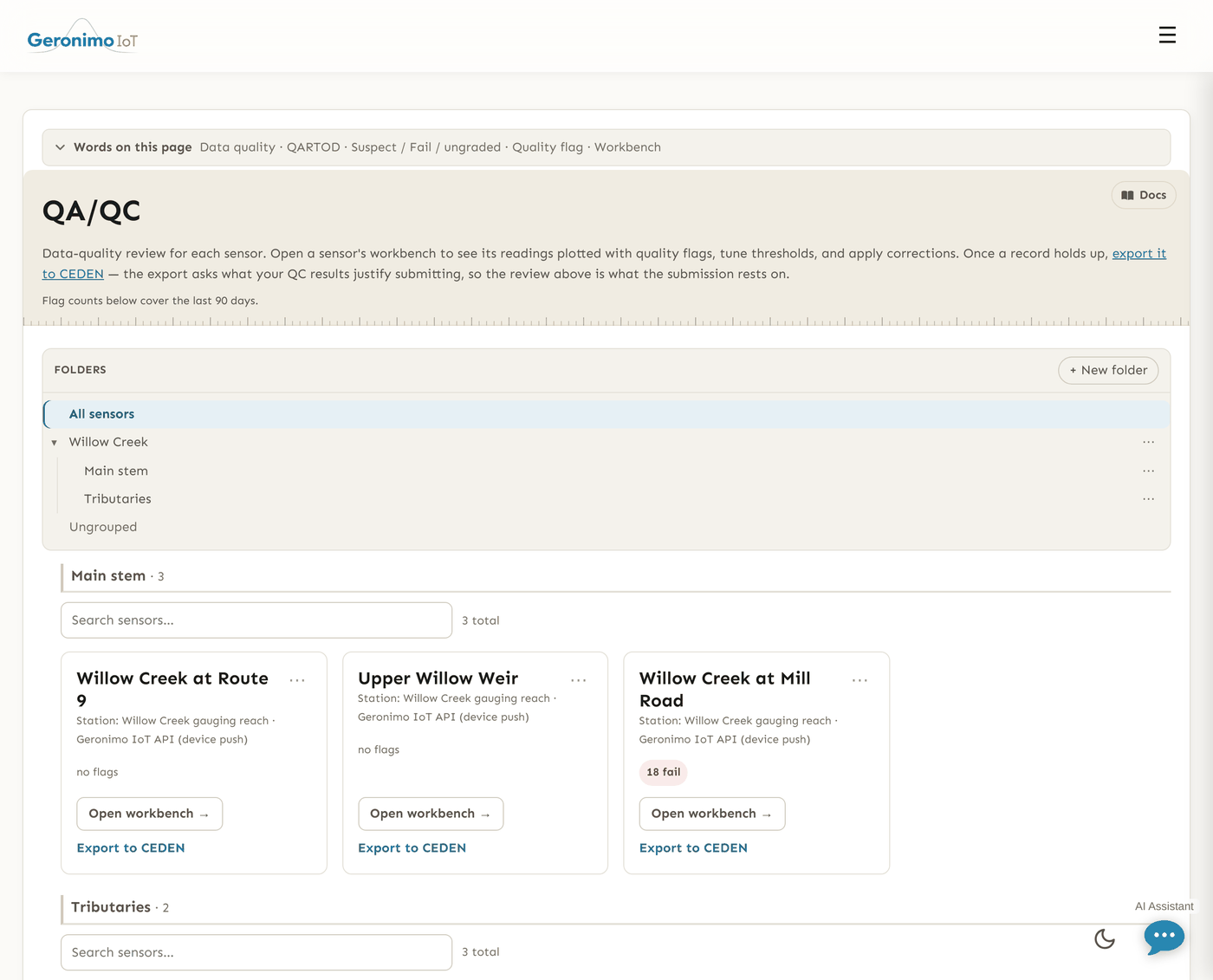
Data quality lists every sensor you can access, grouped by folder, with the same folder and group filters as the Sensors page. Each card shows the sensor's data source and station, a Move to folder picker behind the ⋯ menu on the card, and a flag summary for the last 30 days: a red N fail chip, an amber N suspect chip, or no flags when neither applies. The window is stated on the page so a count is never read as "ever", and it is the same window the workbench's date pickers open on, so a card and the workbench it links to count the same span. Widen the pickers in the workbench to see further back than the card does. Open workbench → opens the sensor; Export to CEDEN jumps straight to the CEDEN export for it.
The workbench
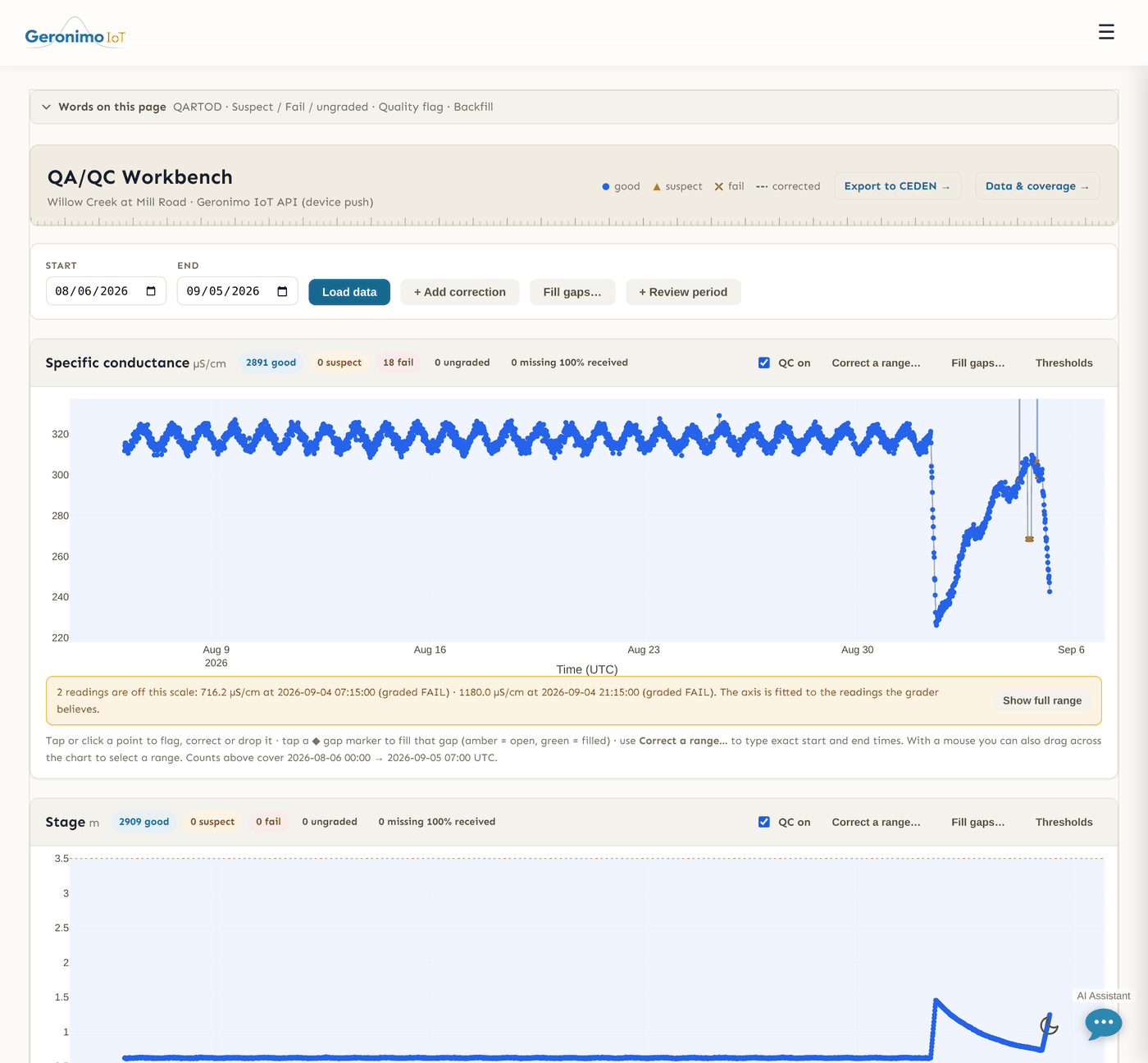
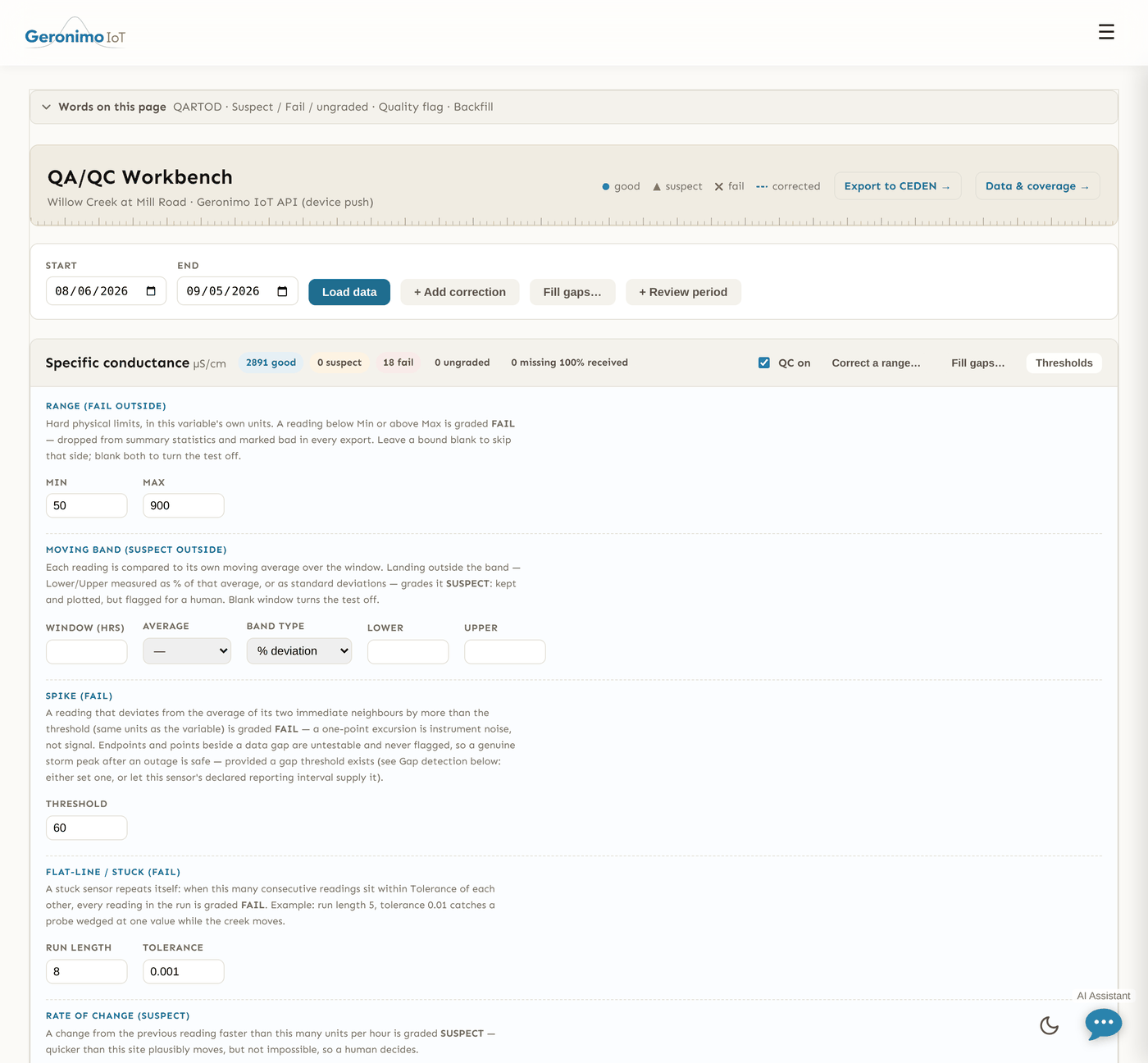
The workbench is one page per sensor with a panel for each variable. Pick a Start and End date (the last 30 days are preselected) and press Load data. Each panel then shows a chip row — N good, N suspect, N fail, N ungraded, and N filled when interpolated points exist — and a chart of the raw series with every point coloured and shaped by its flag. Where corrections exist a dashed corrected line is drawn over the raw one, and interpolated points sit on it as hollow markers. The range test's Min/Max band is shaded across the chart, and detected gaps are shaded amber (green once filled) with a clickable ◆ at the midpoint. The legend in the page header names the shapes.
Members with read-only access to the sensor can open the workbench and load data, but every editing control is disabled and a banner says so; ask a group owner for edit rights in the Data quality category.
Flagging individual points
Click any raw point to open its menu:
- ✓ Mark good — set the flag to Good by hand.
- ✕ Mark bad (fail) — set the flag to Fail by hand.
- ↺ Reset to auto — clear the manual flag and let the automated tests grade the point again.
- ✎ Correct this point… — open the correction modal scoped to this one instant, preset to Set to a constant with the current value filled in.
- Drop this point — write a one-point Delete correction straight away, after a confirmation.
Only measured points take a flag. The corrected line and filled points are derived by the app, so clicking them does nothing; change them by editing the correction or the fill.
Corrections
A correction rewrites a span of the corrected series from the raw readings; removing it later returns the span to raw. Open the modal with + Add correction in the toolbar, or box-select a stretch of a chart to open it already scoped to that range (the title reads Correct selected range and counts the points inside). The fields:
| Field | Meaning |
|---|---|
| Variable | Which series the correction applies to. |
| Type | One of Offset — add a constant, Linear drift — ramp between two offsets, Delete — mark as no value, Set to a constant. The value fields below change with the type. |
| Start (UTC), End (UTC) | The span covered, inclusive. A single instant is allowed. |
| Offset to add (variable's units) | Offset only. Corrected = raw + offset, so a negative number brings readings down. |
| Offset at start, Offset at end | Linear drift only. The correction ramps linearly between the two across the span — a probe that was right at the start and read 0.3 low at the end is 0 → +0.3. Both are required. |
| Value every reading becomes | Set to a constant only — a dry channel, an iced gauge, a probe out of the water. |
| Note | Why — the field visit, the calibration sheet. Shown in the correction log. |
A type that needs a number refuses to save without it, so the log never records a correction that changed nothing. Fill gaps instead… hands the same selected range to the bulk gap filler. Every correction appears in the Correction log below the charts with a Delete button; deleting re-grades the span it covered.
Filling gaps
A filled point is written into the corrected series only: the raw record keeps its hole, the automated QC pass and the alert rules ignore interpolated points, and the chip row counts them as filled rather than as good. A fill never overwrites a real reading — if any instant in the span turns out to hold one, the fill is refused.
Click a ◆ gap marker to open Fill gap for that one gap. Method is Linear interpolation between the bracketing readings or Constant value, whose Constant value box defaults to the reading just before the gap. Fill gap writes the points at the sensor's cadence; when the gap is already filled the modal says so and offers Remove fill.
Fill gaps… (in the toolbar or on a panel) opens Fill gaps in a range: choose the Variable, a Method of Linear interpolation or Hold last value, a From (UTC) / To (UTC) window and Fill gaps up to (min) — the longest gap you are willing to bridge, preset to the variable's gap exceedance. The modal previews how many gaps and points would be filled before Fill gaps commits; longer outages are left alone, because a multi-day hole is not something to invent data for. Every fill is listed under Gap fills with a Delete button that removes exactly the points it inserted, and any discharge derived from them.
Review periods
A review period is a span of one variable's record moving through sign-off, the way a gauging record is actually published ("approved through 31 March"). Press + Review period, pick the Variable, a Start (UTC) and End (UTC) (preset to the dates on screen) and an optional Note, then Open period. Periods on the same variable may not overlap.
Each period in the Review & approval list shows its status and the buttons it can take next: Submit for review moves Working to In review; Approve & lock moves it to Approved; Send back returns it to Working; Reopen unlocks an approved period, and the reopen is recorded with who did it. Only an approved period locks. Inside a locked range every edit is refused with a message naming the period — manual flags, corrections, gap fills, reverts — and the automated pass skips those readings too, so the record stays exactly as it was signed off. Threshold changes are still allowed, because they re-grade only the unlocked part of the series.
Approval runs a readiness check first: if the variable has no configured test, or readings in the range are still ungraded, you are told why and asked whether to approve anyway; an override is written into the change history. A locked period has no Delete button — reopen it first, so a lock can never vanish without a trace.
Change history and Revert
The Change history timeline records every threshold change, manual flag, correction and review transition on the sensor, newest first, with who made it and when. Entries tagged Threshold, Flag or Correction carry a Revert button: reverting restores the previous state and appends a new entry, so history is never deleted and a revert can itself be reverted. Review entries are history, not edits, and have no Revert — a lock is lifted by reopening the period. Rating-curve changes (curves, shifts, backfills, measurements) are also filed here for provenance, tagged rating, and cannot be reverted either; see Rating curves.
Each list below the charts has a search box and filters, and the counts next to the headings show how many rows match.
Data & coverage: backfilling and uploading history
The workbench's second tab, Data & coverage, is where a sensor's record is extended backwards. It opens with what the platform holds — the earliest and latest reading and a month-by-month bar of how much arrived — and the largest gaps of the last two years, each with a Backfill this range link. Changing data is a Data quality edit right: readers see the coverage, editors may import, and every import is listed underneath with who asked for it, what it did and whether it can be undone.
Backfill from the provider
For a sensor that is pulled from Monitor My Watershed, USGS Water Services, the Strawberry Creek relay or Solano County Water Agency, choose a date range (the default is the year before the earliest reading held) and press Start backfill. The platform asks the provider for the range in chunks of at most 92 days, one chunk at a time across the whole deployment with a pause between chunks, so no provider ever sees a burst from here. Progress reads “chunk k of n”, chunks run oldest first so a stopped backfill leaves one contiguous block, and a cancelled batch keeps what it already wrote. Readings you already hold are kept unless you tick Overwrite, in which case the provider's values replace them as a restatement and Data quality re-grades them. Newly added spans are queued for grading too. A device-push sensor has no provider to ask; use a CSV.
Upload a CSV to append
Upload is available only once the sensor has received its first readings from its own data source: the file's columns are matched to the variables the sensor already has, and a CSV can never create a variable. Three steps, each of which works without JavaScript:
- Upload a
.csv/.txt(UTF-8 or Latin-1, any common delimiter, up to 25 MB by default). The first twenty rows are shown; the file is held for at most 24 hours while you finish, and never after the import. - Match columns. The timestamp column and its format are detected (at least 95 % of the sample rows must parse); choose the timezone the timestamps were written in, or say they are already UTC. Every other column is proposed a variable by name similarity, with the unit in the header compared to the variable's unit; a mismatch must be converted (ft ↔ m, °F ↔ °C, ft³/s ↔ m³/s, in ↔ mm) or the column skipped. Unmatched columns are skipped by default.
- Check, then import. A dry run reports rows parsed and rejected (with the first twenty reasons — unreadable timestamps, ambiguous daylight-saving instants, dates before 1990 or in the future, non-numeric values), duplicates inside the file (the last wins), readings already held (kept by default, or overwritten as a restatement with the previous values saved), and values outside the variable's plausibility bounds (kept and flagged). Nothing is written until you press Import now; the write runs in the background and the page reports its result.
Revert this import on a finished CSV import removes exactly the readings it added and restores the values it overwrote — as long as nothing newer has written those instants since; otherwise it refuses and says so. Every import and revert is in the audit log.
Where the flags go
- Exports. Every export format reads the flags and the corrected values, and asks you to choose a QC policy — exclude failed readings, export everything flagged, only readings that passed, or only approved review periods. The header link Export to CEDEN → on the workbench goes straight there. See Exports.
- Analytics. Tick Show corrected data on the analytics page to colour suspect and failed points on the line plots and overlay the corrected series as a dashed line. See Analytics.
- Rating curves. A derived discharge series inherits its stage reading's flag, is computed from the corrected stage, and can carry its own range test on top. Editing or re-grading the stage rebuilds the discharge for the same span.
- APIs. The public data API returns flags and corrected values when asked, using the same QARTOD codes.