
Getting started
Adding sensors
Register a sensor, choose how its data arrives (device push, Monitor My Watershed, USGS), keep maintenance records.
Two ways readings arrive
Before you can plot anything or write an alert, the sensor has to be registered. Readings reach Geronimo IoT in one of two ways:
- Push: your device sends readings to us over the Geronimo IoT upload API, authenticated with a per-sensor credential.
- Pull: Geronimo IoT fetches readings from a provider on a timer — Monitor My Watershed, USGS Water Services, PurpleAir, the Solano County Water Agency CSV feeds, or a Strawberry Creek site.
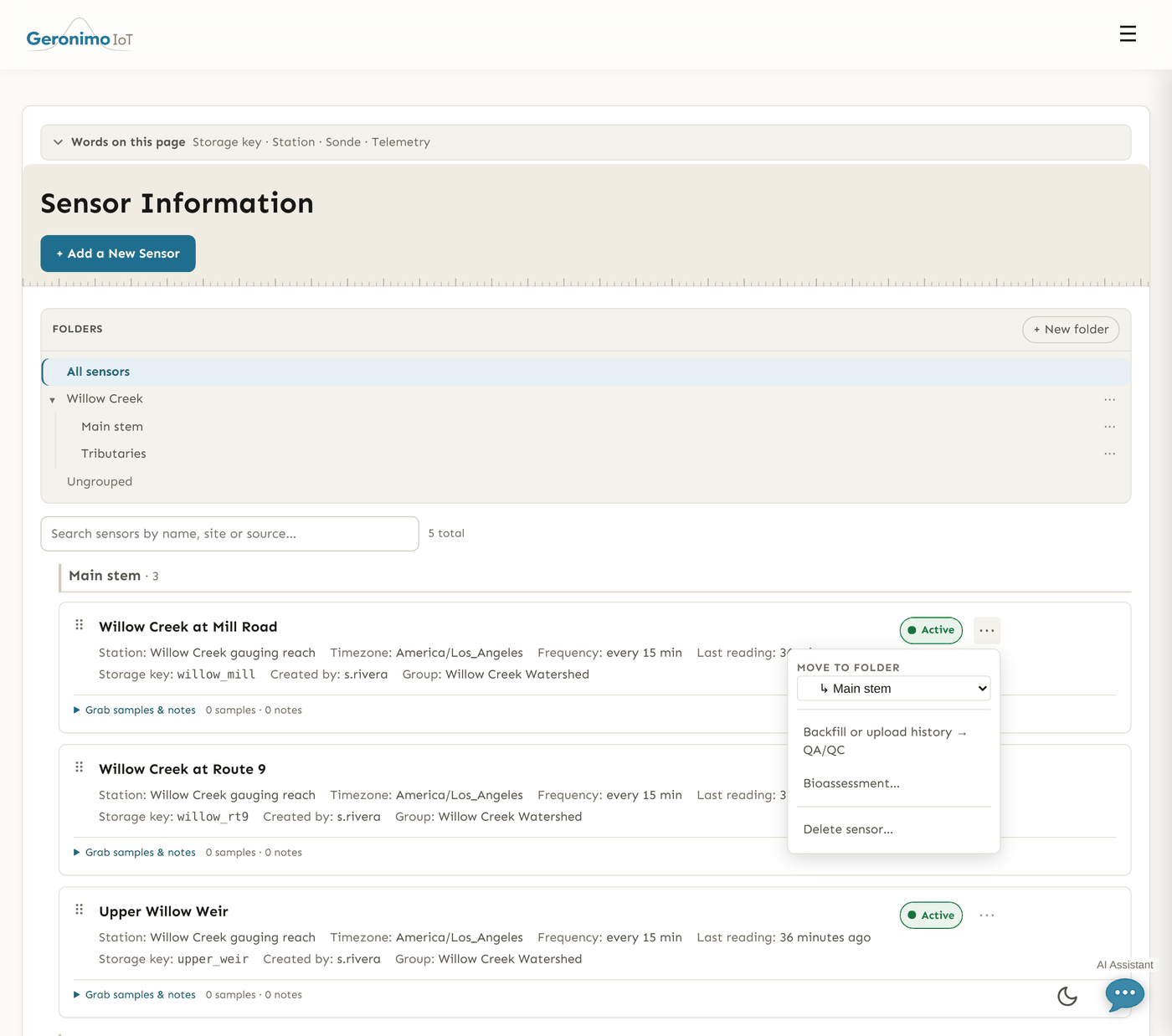
Either way you start on the Sensors page with + Add a New Sensor. The Data Source you pick decides which path applies and which extra fields the form shows.
The sensor form
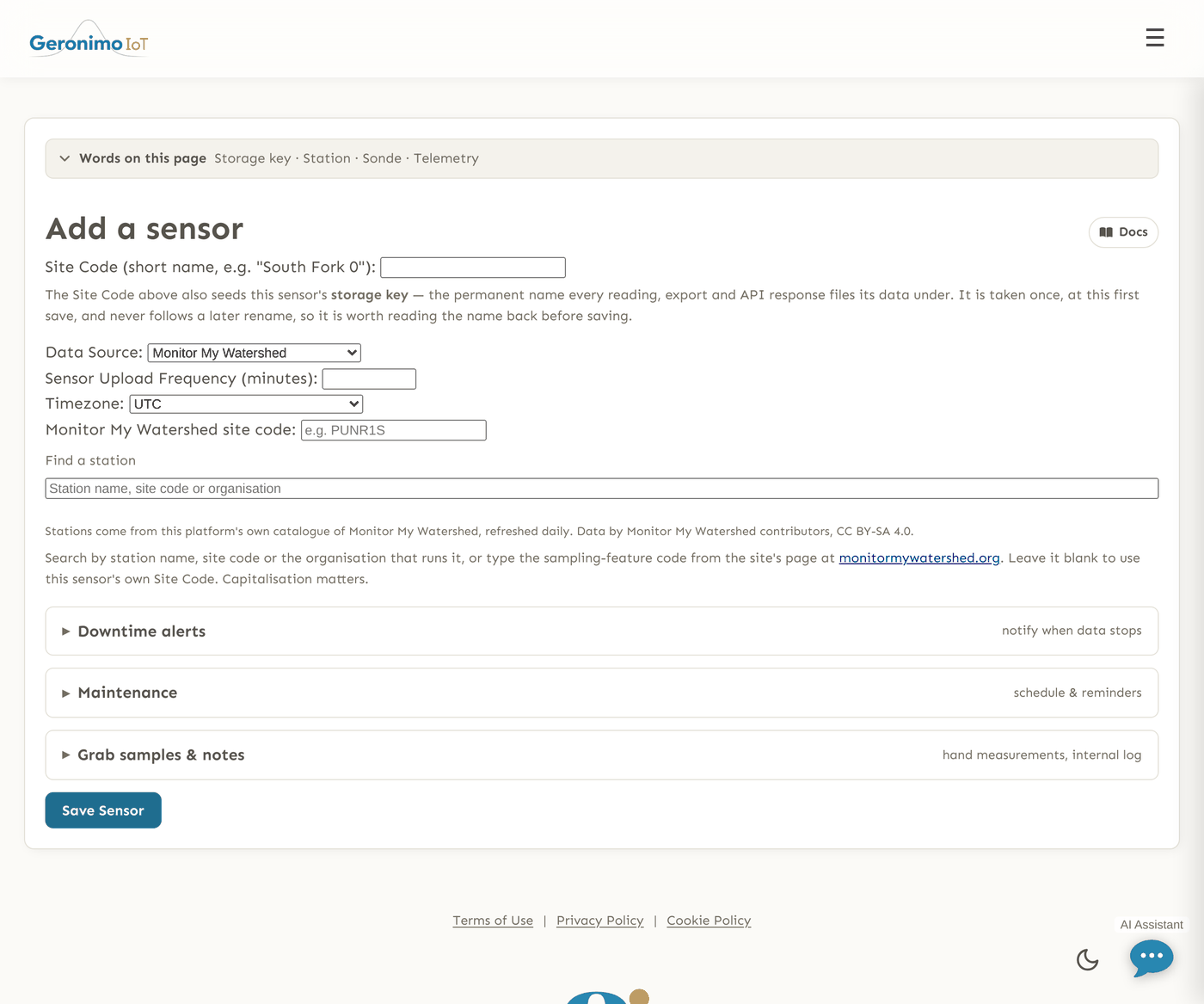
The page is titled Add or Edit Sensor. The identity block at the top applies to every source; the collapsible sections below it hold the downtime alarm, the maintenance schedule and — once the sensor is saved — its API tokens, maintenance log, grab samples and notes. Nothing is stored until you press Save Sensor.
| Field | What it does |
|---|---|
| Site Code (always required) | The sensor's display name — what you see in every list, picker and chart, e.g. North Fork 0. Letters, numbers, spaces, hyphens and underscores only, 64 characters or fewer, and unique within your group (two groups can each have a "test"). On first save it also seeds the sensor's permanent storage key — see below. |
| Group | Only shown when you belong to more than one group, and only when creating: who the sensor and its data belong to. It cannot be changed later from this form. |
| Data Source | Where the data comes from. The choices are Monitor My Watershed, PurpleAir, Geronimo IoT API (device push), Strawberry Creek relay API (pull), Solano County Water Agency and USGS Water Services. Every source except the Geronimo IoT API is pulled on a timer; that one is the only door a device pushes readings through. |
| Sensor Upload Frequency (minutes) | How often the sensor reports. Required for every pull source, where it is the polling interval; hidden for the Geronimo IoT API, because the device controls its own timing. It is also the basis of the default downtime threshold, so set it honestly. |
| Timezone | The sensor's local timezone, used to read incoming timestamps. Hidden for the Geronimo IoT API and pinned to UTC for the Strawberry Creek pull source (that feed is already UTC). Changing it later on a sensor that already has data re-reads its whole history, so the form only allows it with Settings edit rights on the sensor — and refuses it altogether when the sensor stands at a station, because the station owns the timezone. |
| Sensor URL (for PurpleAir) | Shown only for PurpleAir: the sensor's URL. (The server also needs a PurpleAir API key configured by your administrator.) |
| Data URL | Shown only for Solano County Water Agency: the CSV endpoint URL the platform polls. |
| Site Code (Strawberry Creek) | Shown only for the Strawberry Creek pull source: pick the monitoring site from the list. Everything the site publishes is collected. |
| USGS site number | Shown only for USGS Water Services: the gauge's site number (7–15 digits, e.g. 11447650; USGS-11447650 is accepted too). |
Site code versus storage key
A sensor has two names. The site code is the display name above: it belongs to your group, and you can rename it whenever you like. The storage key is the sensor's permanent identity — every reading, QC flag, correction, gap-fill, review lock and alert event is filed under it by value. It is assigned once, when the sensor is first saved, from the site code as typed (if that name is already taken or was used by a deleted sensor you get name-2, name-3, …), and it never changes afterwards, however often the sensor is renamed. The Settings page shows it under each sensor's name as Storage key, and it is the sensor_id a device or API caller uses. For sensors created before the split the two are identical.
Straight to the API (device push)
Use this when your device sends its own readings — an EnviroDIY Mayfly, for example. The device posts each reading directly to the upload API, so there is nothing for the server to poll.
- Register the sensor with Data Source = Geronimo IoT API. Upload frequency and timezone are not asked for here, because the device controls its timing and stamps its own readings. Do set a Downtime threshold (minutes) in the Downtime alerts section, or the platform has no way of knowing what "silent" means for this sensor and cannot warn you.
- Copy the credential. A credential is minted for every sensor on creation and is shown once: the page you land on after Save carries a banner with the upload token, the key id and the signing key. Copy all three onto the device before leaving the page — only a digest is stored, so nothing can show them again. If you lose them, open the sensor's edit page, expand API access & tokens and press Rotate credential, which mints a new set (and retires the old one) and shows it once in the same way. See API access and tokens.
- Program the device and start uploading. Flashing a Mayfly, the Arduino sketch and confirming that data arrives are covered step by step in Install a new sensor; the raw request format is on the API documentation page.
Monitor My Watershed (server pull)
Use this for Hydros21 / EnviroDIY sites that already publish to Monitor My Watershed. Geronimo IoT pulls the data on a timer; the device never talks to us directly.
- Choose Data Source = Monitor My Watershed. A Monitor My Watershed site code box appears, with a search under it.
- Search for the station by name, by its site code, or by the organisation that runs it, and pick it from the list. The search reads this platform's own daily catalogue of Monitor My Watershed — not MMW itself — so it answers instantly, and it lists every station on the portal whether or not it is currently reporting.
- Check what it records. Picking a station asks Monitor My Watershed what measurements it publishes and lists them under the box — water depth, temperature, conductivity, battery, and so on. This is worth a glance: a Leaf Pack or StreamWatch site is a survey rather than a logger and has no continuous series at all, so a sensor pointed at one would save cleanly and then ingest nothing, for ever, without complaining.
- The Site Code box is filled in with a tidied version of the station's name if you have not typed one yourself. It no longer has to match MMW's code, which is the point of the separate box: call the sensor whatever reads well here, and the site code you pick is only ever what this platform calls it. Set the upload frequency and timezone to match the station.
- Save. Ingestion picks the new site up on its next cycle and fetches every variable the site publishes; variables appear on the Settings page as data arrives, and from then on the sensor is an ordinary sensor of yours — it charts, exports, alerts and appears on Analytics like any other.
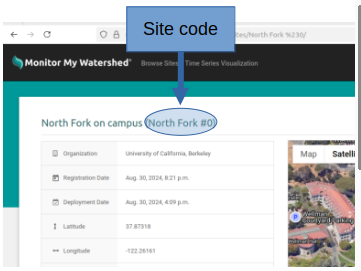
Capitalisation matters, and nothing is corrected for you. Monitor My Watershed treats ScNf010 and SCNF010 as different sites, and its codes may contain spaces and punctuation because they are whatever the registering group typed. If you type a code by hand rather than picking one, copy it exactly. Leave the box empty and this platform falls back to using the sensor's own Site Code as the MMW code, which is how every Monitor My Watershed sensor set up before this box existed still works.
USGS Water Services (server pull)
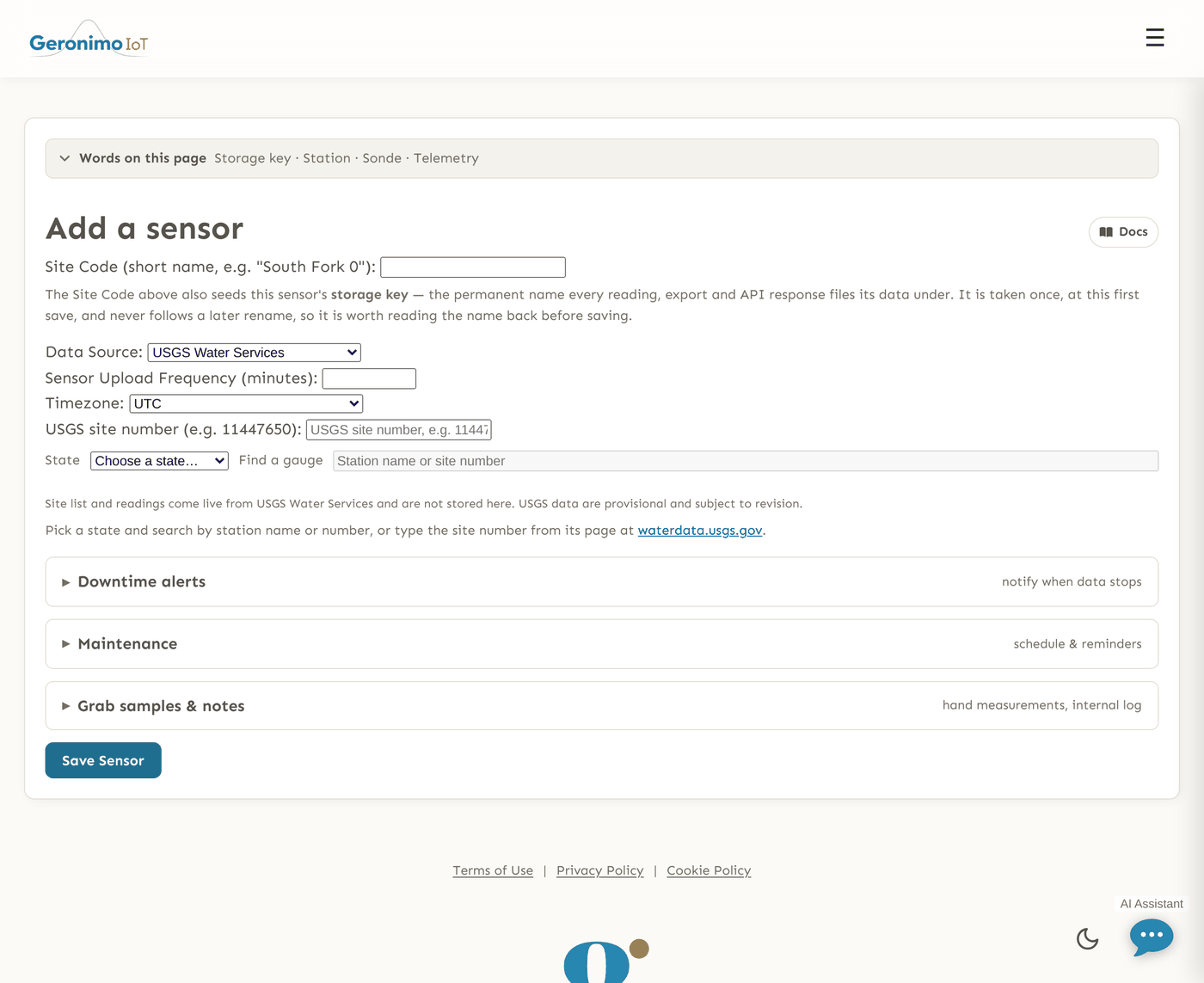
USGS sensors pull from the official USGS Water Data API. All you need is the gauge's USGS site number, found on its page at waterdata.usgs.gov (e.g. 11447650 for "Sacramento R A Freeport CA").
- Set Data Source to USGS Water Services.
- Enter the number in the USGS site number field that appears — no URL needed — or use the picker under it: choose a State, then type part of the station name (or the first digits of the number) and pick the gauge from the list. Picking fills the site number, proposes the station name as the Site Code if that is still empty, and shows which variables the gauge currently reports (gage height, discharge, temperature…).
- The picker runs in your browser: it reads USGS's public Site and Instantaneous Values services directly, and nothing from them passes through or is stored on this server (the state you chose is remembered in your browser only). The site number is validated on save exactly as a typed one is.
- Set the upload frequency to the gauge's reporting interval (most USGS gauges report every 15 minutes).
Each ingest cycle fetches the last 24 hours of gage height (stage, ft), discharge (flow_rate, ft³/s) and water temperature (temperature, °C) where the site provides them; readings already stored are deduplicated automatically.
Backfilling and uploading history
Older readings — from the provider's own archive, or from a file you have — are added on the sensor's Data quality workbench, under Data & coverage. See Data quality: Data & coverage for the backfill and CSV steps; the short version is that a pulled sensor can ask its provider for a date range, any sensor can append a CSV once it has received its first readings, and nothing you already hold is overwritten unless you say so.
The ingest-health badge
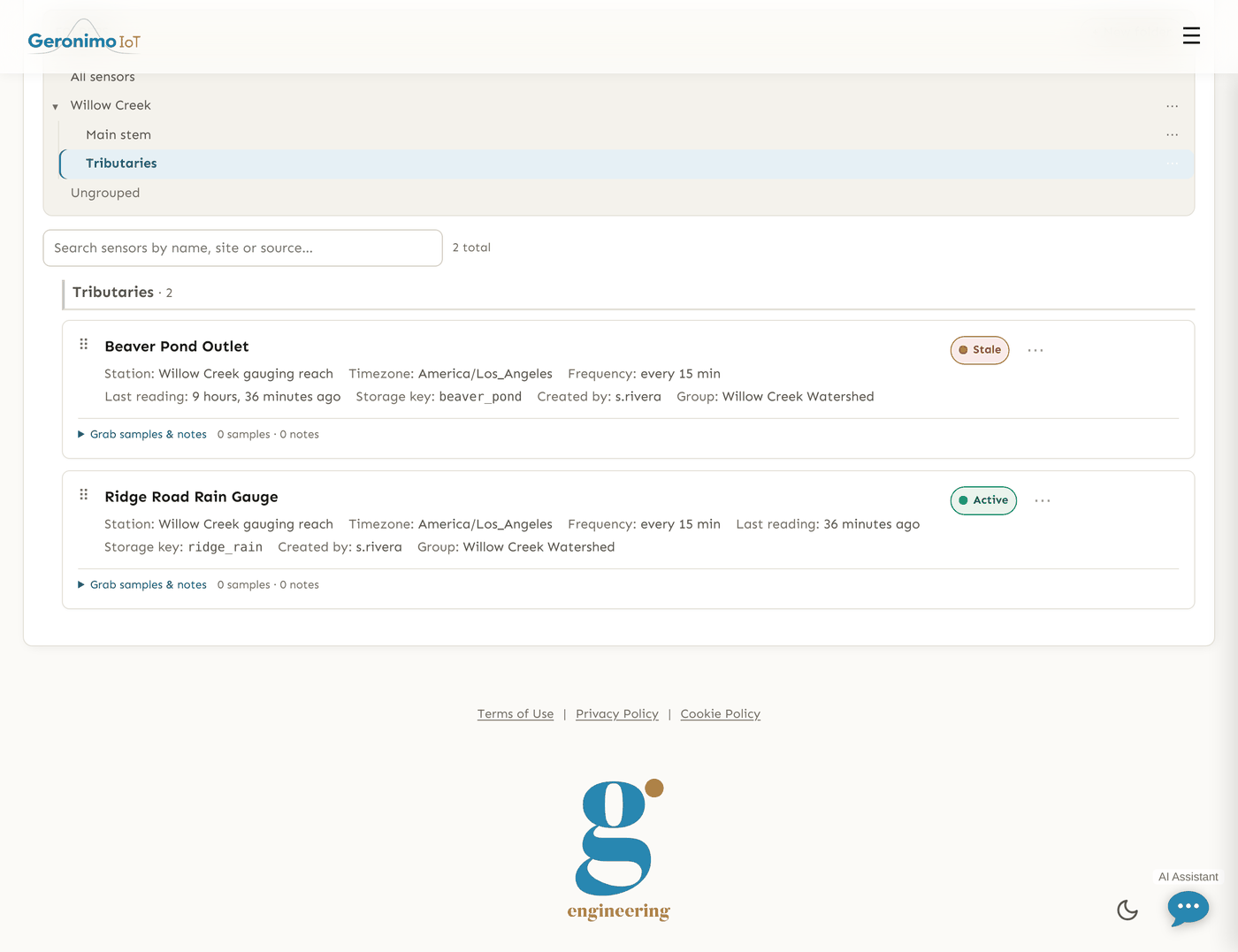
Saving the form creates the sensor. From then on its card on the Sensors list carries a badge: No data yet until ingestion has first looked at it, Active while readings keep arriving, Recovering when recent fetches failed but the data is still fresh, and Stale when no new data has arrived within the sensor's downtime threshold. Hover the badge for the last data time and last status. The badge and the downtime alarm below use the same threshold, so they never disagree.
Downtime (staleness) alarm
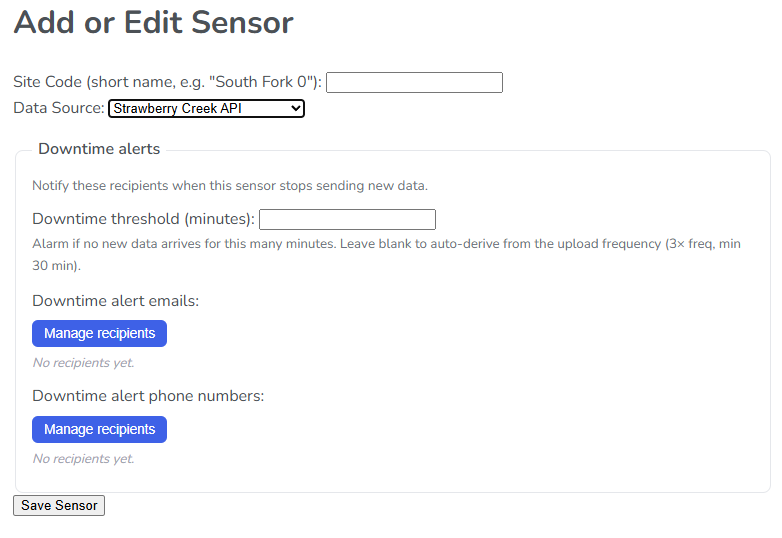
The Downtime alerts section of the form is how you are told when a sensor goes quiet — the failure no data-value rule can see.
| Field | What it does |
|---|---|
| Downtime threshold (minutes) | Raise the alarm if no new data arrives for this many minutes. Leave blank to derive it from the upload frequency (three times the frequency, minimum 30 minutes). For a push sensor with no frequency, set it explicitly. |
| Downtime alert emails | Who to email when this sensor goes silent. Use Manage recipients to add addresses one at a time or paste a comma-separated list — the same picker the alert rules use. |
| Downtime alert phone numbers | Who to text. Include the country code (e.g. 15105551234). |
The alarm fires once when the sensor first goes silent past its threshold, not on every cycle, and is written to the alert log. When data resumes the alarm clears and a recovery entry is logged (no message is sent for the recovery). Recipients are per sensor on purpose: if you leave both lists blank the alarm falls back to the deployment-wide list, which your administrator may well have left empty, so the Health dashboard's Sensors not watched for downtime tile is worth a look after you add sensors.
API access and tokens
Once a sensor is saved, its edit page gains an API access & tokens section with two credentials, both minted automatically when the sensor was created:
- The upload credential (
sk_<storage key>_<secret>) is what a push device uses to post readings — it identifies the sensor as well as authenticating it, so a device can only ever write its own sensor's data. Treat it like a password. How this device authenticates chooses between Signed requests (recommended), where the device sends its key id plus an HMAC signature and the secret never travels, and Legacy bearer token, for firmware that cannot sign. Only a digest is stored, so the page shows just the first characters; Rotate credential issues a new token, key id and signing key and shows all three once. - The read / download token is needed by anyone pulling this sensor from the data API while it is private (a public sensor needs none). Rotate read token replaces it. Public or private is set on the Settings page, not here.
Request formats, signing rules and rate limits are on the API documentation page.
Maintenance schedule and log
The Maintenance section keeps the instrument's service record with the instrument. Schedule & reminders takes a Maintenance interval (days) (e.g. 90 for a quarterly cycle; blank means no schedule), a Reminder message included in every reminder — what needs doing when you get there — and Maintenance reminder emails / Maintenance reminder phone numbers. Next-due is the date of the last logged maintenance plus the interval, and the section's header shows the status: Not scheduled, No maintenance logged, Due in N day(s) or Overdue by N day(s). At most one reminder is sent per cycle.
The Log (available once the sensor is saved) records each visit: a Date, a Type — Calibration, Cleaning, Battery / power, Sensor swap, Site visit / inspection, Repair or Other — and free-text Notes; press Log maintenance. Each entry shows who logged it and can be deleted. Logging a visit pushes the next-due date out.
Beside it, Grab samples & notes holds hand measurements and field notes — the things you reach for when the telemetry looks wrong. They are kept separate from the instrument's series and never exported as telemetry. The same log is also reachable from each card on the Sensors list.
A note can carry pictures — a fouled sonde, a buried intake, a cracked enclosure. Pick them beside the note box (PNG, JPEG, GIF or WebP; up to six per note), add an optional caption, and they appear as thumbnails under the note; click one for full size. Camera metadata — GPS coordinates, camera serial, owner name — is stripped before the picture is stored, and the picture is as private as the note: it is served only to someone whose sensors permission already lets them read that sensor, so it never appears on a public page, a map, an export or a shared link, even if the sensor itself is public.
Folders, stations and visibility
Some things about a sensor are deliberately not on its form:
- Folder. File a sensor with the Move to folder picker behind the ⋯ menu on its card on the Sensors list (or the picker on its Settings card). Folders nest, the same tree filters every list, and folder-scoped permissions apply to everything inside — see Getting started.
- Station. Where several instruments stand at one place, put them on a station from the Settings page; the station then owns their coordinates, timezone and site notes. See Settings.
- Public, Show on analytics, Show on map and the sensor's latitude and longitude are set on the Settings page too, because publishing is a Settings right rather than a Sensors right. A new sensor is born private — nothing leaves the group until someone with Settings permission ticks Public.
Deleting a sensor
Delete sensor… is behind the ⋯ menu on the sensor's card, followed by a confirmation page. Deleting removes the sensor's registration, its rules and its place in maps and pages. Its readings, QC flags, corrections and review locks stay in the store under the retired storage key, and that key is never issued again — a later sensor given the same site code gets a fresh key rather than inheriting the old record.
Careful. There is no undo, and a device still posting with the deleted sensor's credential will be refused. Consider moving the sensor to an "Archive" folder instead.