
Data quality & products
Exports
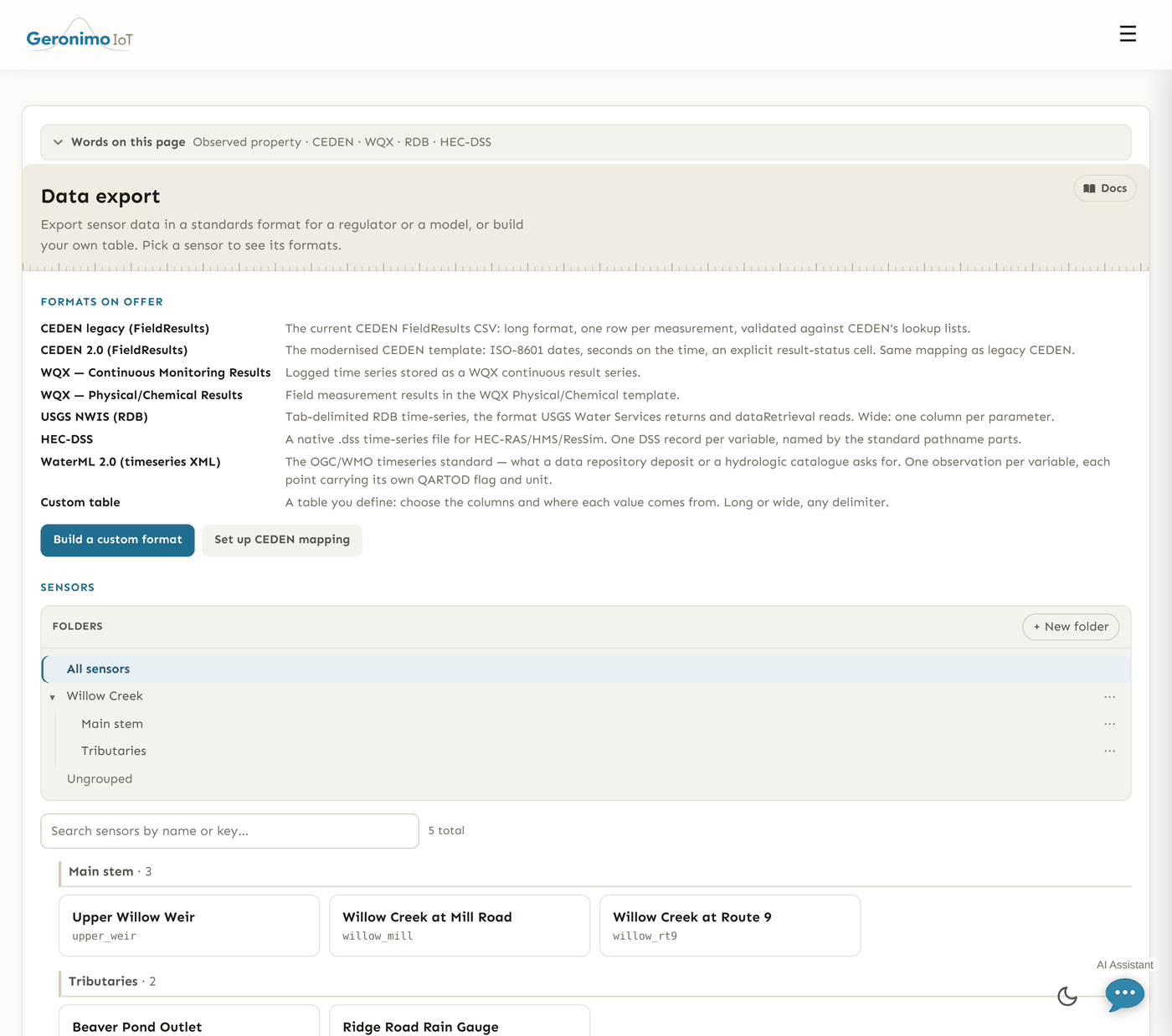
CEDEN, WQX, USGS RDB, HEC-DSS, WaterML2 and custom tables; QC export policies; the CEDEN mapping workbench.
When to use exports
Use an export when someone outside the platform needs a file of a sensor's readings: a regulator's data centre (CEDEN, EPA WQX), a hydraulic model (HEC-DSS), a colleague's R script (USGS RDB), a data repository (WaterML 2.0), or a spreadsheet laid out the way a lab loader expects (a custom table). Every format reads the same readings, grades them against the QC policy you pick, converts units where the target format demands a particular unit, and refuses rather than truncates a file that would be incomplete or misleading. If you need readings on a schedule instead of a one-off file, see Without the browser.
Open Export from the navigation — the item is called Export on the bar, and this is the page it leads to. The landing page lists the formats on offer and the sensors you can export (with the same folder bar, group chips and search box as the other sensor lists); pick a sensor to reach its export hub.
Who can export. Exporting a sensor needs read access to Data quality on it and read access to its readings. Saving a CEDEN profile, a station mapping or a group-shared custom format needs read & edit on Data quality in that group; a personal custom format (not attached to a group) is yours to edit.
The formats
The hub groups formats by family. The first two need a saved CEDEN mapping before they can build anything; the rest map straight off each variable's observed property and unit from the Settings page.
| Format | Family | File | Needs CEDEN mapping? | Who accepts it / what it is for |
|---|---|---|---|---|
| CEDEN legacy (FieldResults) | CEDEN | .csv, long (one row per measurement) | Yes | The current CEDEN FieldResults template, validated against CEDEN's lookup lists. California SWAMP/CEDEN submissions. |
| CEDEN 2.0 (FieldResults) | CEDEN | .csv, long | Yes (same mapping as legacy) | The modernised CEDEN template: ISO-8601 dates, seconds on the time, an explicit result-status cell. |
| WQX — Continuous Monitoring Results | WQX | .csv, long | No | WQX Web import template for logged time series; EPA stores the points as a continuous result series rather than thousands of unrelated grab samples. |
| WQX — Physical/Chemical Results | WQX | .csv, long | No | WQX Web's general field-measurement template; one activity per instant. |
| USGS NWIS (RDB) | USGS | .rdb, tab-delimited text, wide (one column per parameter) | No | What USGS Water Services returns and the dataRetrieval R package reads. Variables are matched to five-digit USGS parameter codes. |
| HEC-DSS | HEC-DSS | .dss, binary | No | A native time-series file for HEC-RAS, HEC-HMS and HEC-ResSim: one DSS record per variable, named by the standard pathname parts, times in UTC. |
| WaterML 2.0 (timeseries XML) | WaterML2 | .xml | No | The OGC/WMO time-series standard a repository deposit or hydrologic catalogue asks for. Each point carries its own QARTOD flag and unit; timestamps are UTC. |
| Custom table | Custom | .csv (or the delimiter you choose), long or wide | No | A table you define in the custom format builder: your headers, your column sources, your delimiter. |
Standard-unit formats (USGS, HEC-DSS, WQX, CEDEN) stamp a fixed unit on each column, so a series stored in another unit is converted when a conversion is defined (m³/s → ft³/s, m → ft, °F → °C and so on) and the file tells you so; a stored unit with no defined conversion is left out with a reason, never published under a unit it is not in. A variable with no stored unit is written unchanged with a warning asking you to confirm it.
Careful with HEC-DSS. A DSS record has no per-value quality flag, so readings QC graded FAIL or SUSPECT are left out whichever QC policy you pick (the file cannot carry the caveat, and a flagged block written as clean data would be integrated by a HEC model). Gap-filled values are written and are likewise unmarked. The workbench says this above the form and the download summary repeats it. Use CEDEN, WQX or USGS RDB when flagged readings must carry their flags.
QC export policies
Every format offers the same four answers to "what do I submit, given what the data-quality pass found". The policy decides which readings are written and, in the formats that have a flag cell, what the recipient is told about each one (CEDEN's QACode and ResultsComments, WQX's Result Comment and Result Status ID, USGS's _cd qualifier column). Flags themselves are explained on the Data quality page.
| Policy | What is written | What is flagged |
|---|---|---|
| Exclude failed readings (default) | Drops anything QC graded FAIL or MISSING, or never graded at all — "never checked" is not the same claim as "checked and clean". The usual choice for a routine submission. | SUSPECT readings go out with a QAX flag and a comment naming the test that tripped. |
| Export everything, flagged | Every reading that has a value. Nothing is dropped — including data you may not want to submit. | FAIL and SUSPECT carry QAX and a comment; readings never graded carry NR ("Never quality-controlled") so they read as ungraded rather than as passed. |
| Only readings that passed QC | Only readings graded GOOD. Strictest of the flag-based policies: anything suspect, failed or never graded is left out. | Nothing to flag. |
| Only approved review periods | Only readings inside a data-quality review period that has been approved, then the same rule as Exclude failed readings. The most defensible option, and it exports nothing until sign-off has happened. | SUSPECT readings inside the approved span carry QAX. WQX rows are marked Final instead of Preliminary; USGS qualifiers become A (approved) instead of P (provisional). |
Two details apply under every policy. A gap-filled (interpolated) point passes QC but is not a measurement, so it is always published as estimated — QAX with the comment "Estimated: interpolated over a gap, not measured" in CEDEN, the e qualifier in USGS. And in USGS RDB the two cases NWIS has no code for are written with local codes declared in the file's own comment block: x for a reading that failed QC and u for one never graded.
A variable with QC switched off cannot be exported under the default policy. A newly discovered variable has QC on unticked, so its readings are never graded, and every policy except Export everything, flagged leaves an ungraded reading out — "never checked" is not "checked and clean". The workbench preview warns which selected variables have QC switched off, and a download that would drop every reading is refused with the same advice: tick QC on for the variable in the Data quality workbench and save (the series is graded immediately), or choose Export everything, flagged. A reading pushed seconds ago may also still be ungraded — grading runs within seconds of a push and a sweep runs every 15 minutes.
From landing page to file
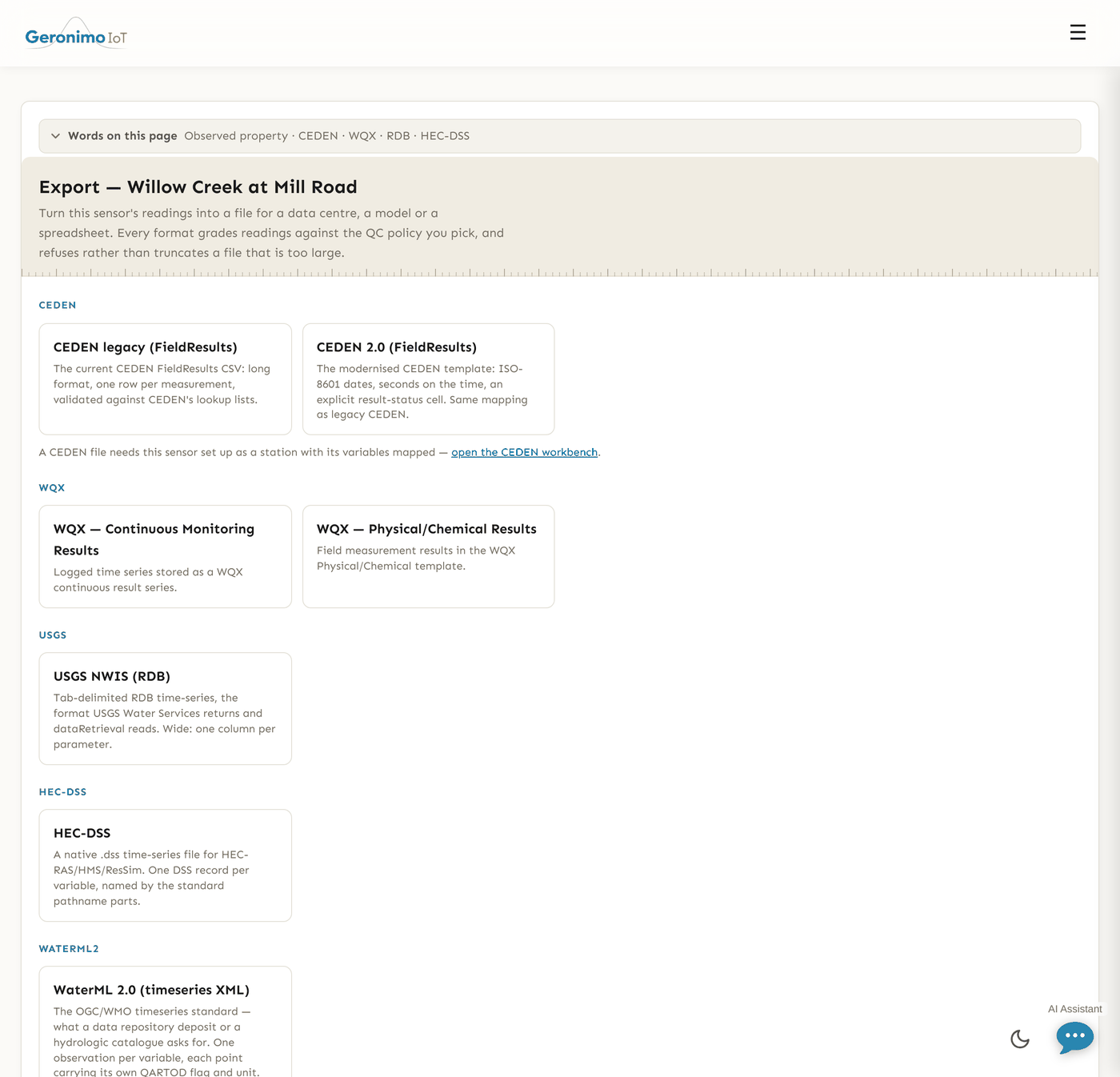
The sensor's export hub
Clicking a sensor on the landing page opens its hub: one card per format, grouped by family. The CEDEN cards carry a link to open the CEDEN workbench, because those two formats cannot build anything until the sensor is a station with its variables mapped. The Custom table card opens the builder; any saved custom formats you can use appear as buttons beneath it and open the custom workbench directly.
The workbench
Each format has the same workbench. The What will export panel lists every variable as exports or skipped with the reason (no USGS parameter code, no defined unit conversion, no CEDEN analyte mapped…) and shows the warnings the file will carry. Below it, the Export form:
| Control | What it does |
|---|---|
| Columns — all / none | One tick box per exportable variable. Untick the battery voltage or the second probe you do not want in this file. Unticking everything is refused with "Tick at least one column to export." rather than exporting all of them. |
| From / To | Whole days in the sensor's own timezone, inclusive of both ends, defaulting to the last 30 days. The hint names the zone. WaterML2 timestamps are written in UTC, the same instants in a different clock. |
| QC policy | One of the four policies above; opens on Exclude failed readings. |
| CEDEN profile | CEDEN formats only: which submission profile's station mapping to use when the sensor is a station in more than one. |
| Custom format | Custom table only: which of your saved formats lays out the file. |
| Preview | Counts the readings in range, reports errors and warnings, and shows the first 12 timestamps graded with the chosen policy and converted to the file's units — a previewed number is the number the file will carry. The preview makes the same refusals the download would, so "Preview says fine, Download says no" cannot happen. |
| Download | Builds and saves the file, then reports what it contains. |
If the preview examines its first 20,000 readings and none survive the policy, it says so in those words rather than claiming the window is empty — the count above it still covers the whole window.
What the summary after a download tells you
The line under the buttons is the completeness evidence for the file you just saved: "Downloaded N row(s), M left out." followed by one line per drop reason (failed QC, no value, outside an approved period, and so on) and any writer warnings (a unit that was converted or guessed, the HEC-DSS flag note). WQX files are streamed, so their counts arrive a moment after the file does; if a streamed download ended before the export finished, the summary says the saved file is INCOMPLETE and to run it again. Keep the summary with the file if you are filing a submission — the same counts are in the file's response headers but a browser does not show those.
Refusals, and what to do
A refusal is a message instead of a file. The ones you are most likely to meet:
- Over the row limit — "That window produces N rows, more than the limit-row limit one export file should carry. Export a shorter window…" The limit is sized to what the server can build inside its request timeout (160,000 rows at the default settings; the message quotes the live number). Shorten the window or export fewer columns.
- Still building at the deadline — "This export was still building after N seconds…" The server refused rather than being cut off part-way. Export a shorter window, or a single variable.
- Nothing survived — "Refusing to build this … export: every one of the N reading(s) in this window was left out…" with the reasons. Widen the window, choose a different QC policy, or use a format that can carry these readings.
- Nothing maps — not one selected variable can be carried by this format (no parameter code, no analyte, no unit conversion). Choose another format, or fix the variable's observed property and unit on the Settings page.
- Collisions — two readings of one series inside the same minute (CEDEN legacy) or second (CEDEN 2.0, WQX, USGS), or two series that build the same DSS pathname, would overwrite each other in the target format, so the window is refused; export the variables separately or a window that avoids the duplicate.
- Not set up for CEDEN — "This sensor is not set up for CEDEN yet. Create a profile and map its variables in the CEDEN workbench first."
- Rate limit — "Too many exports from this account in the last hour." Each account may download 60 exports and run 240 previews an hour; wait a few minutes.
Note. If the sensor's stored timezone is not one the system knows, every preview and download warns you that times are being read and written in UTC. Fix the timezone on the sensor before submitting that file, or every timestamp in it is off by the offset.
The CEDEN mapping workbench
A CEDEN FieldResults file is long: your wide logger table (one row per instant, one column per variable) becomes one row per measurement, and every row carries descriptive cells your header never held — project, agency, station, analyte, unit, fraction, matrix, method. The CEDEN workbench is where you say what those cells are, once, so both CEDEN formats can fill them in. Reach it from the landing page (Set up CEDEN mapping), from a sensor's export hub, or from Data quality.
Submission profiles
The CEDEN export hub lists your profiles and creates new ones. A profile holds the cells CEDEN expects to be identical on every row of a project's submission — you fill them in once rather than per station. It is shared with your group when you have one.
| Field | Meaning |
|---|---|
| Name | What you call it here. Not submitted. |
| ProjectCode | Your registered CEDEN project code. |
| AgencyCode | The agency that collected the data, as CEDEN knows it. |
| ProtocolCode | The sampling protocol the project follows (optional). |
| EventCode | From CEDEN's list; defaults to WQ. |
| CollectionMethodCode | Defaults to Field_Cont, the code for a continuously logging instrument. |
Create profile saves it; Delete on a profile removes its stations and variable mappings with it. Each profile lists its stations, and each station name opens that sensor's workbench under that profile. Download the example spreadsheet (example.csv) gives you a filled-in FieldResults sample to open beside the blank template your data centre sent you.
The sensor's workbench: station and variables
The per-sensor workbench has three steps. Step 1 shows what CEDEN expects, column by column, colour-coded by where each cell comes from (your profile, this station, each variable, the reading, its data-quality flag, or a constant). Step 2, Match your variables, is the mapping:
- Profile — which submission profile this station reports under (project, agency and protocol come from it).
- StationCode (must already be registered with CEDEN), LocationCode (default
Midchannel), CollectionDeviceName (the instrument, e.g. Hydros 21), CollectionDepth and its Depth unit, PositionWaterColumn. - One card per variable with AnalyteName, UnitName, FractionName, MatrixName and MethodName, pre-filled from what the column measures. The badge says where the card stands: Confirmed (a person saved it), Suggested, Check this, or No analyte. Choosing — do not export this variable — as the analyte is a real answer: battery voltage has no business in a FieldResults file. Analytes the app could not confirm against CEDEN's published lookup lists are marked "(verify)".
- Accept all suggestions fills every card from the suggestion; Save mapping saves the station and marks every variable above as confirmed. An unconfirmed mapping still exports, but the export warns you which analytes went out on a suggestion nobody checked.
Step 3, Preview and export, is the CEDEN-only twin of the workbench above: From/To in the sensor's timezone, the four policies as cards with their descriptions, Preview rows (the first 12 rows exactly as they will be written) and Download CSV. Step 3 writes the legacy FieldResults CSV; the CEDEN cards on the export hub build the same file, or the 2.0 template, from this same mapping.
The custom format builder
Open Custom export formats from the landing page (Build a custom format) or the hub. A saved format lists its name, layout and column count with Edit and Delete; the form below it creates a new one.
| Field | Choices and meaning |
|---|---|
| Name | What you call it, e.g. "Lab import". Required. |
| Layout | Long — one row per measurement (every column fully yours; a source that needs a variable has one on every row) or Wide — one row per instant, a column per variable (the spreadsheet shape; leading columns are the once-per-instant sources and each value column expands into one column per exported variable). |
| Delimiter | Comma (CSV), Tab (TSV), Semicolon, Pipe. |
Then the columns. + Add column adds a row with a Header (the text in the file's header line), a Source, and the option that source needs; ✕ removes it. A new format starts with a time timestamp column and a value column.
| Source | Option |
|---|---|
| Fixed text | The text written in every row. |
| Timestamp | A format string (default %Y-%m-%d %H:%M:%S%z, so a local-time column says which zone it is in) and Local time or UTC. |
| Station field | Storage key, Site code, Latitude, Longitude, Timezone or Data source. |
| Measured value | The graded reading (corrected where a correction exists). In wide layout this is the column that expands per variable. |
| Unit | As Symbol, UCUM code or Name. |
| Observed property | As Slug, Name or Definition URI. |
| QC flag | As Numeric code or Name. |
| Variable column name / Variable label | The raw column name, or its friendly label from the Settings page. |
Save format validates the definition and keeps it; it then appears in the Custom format drop-down of every sensor's custom workbench. The QC policy you pick at export time still governs which readings appear — a custom file drops exactly the readings the chosen policy drops, no more, no less.
Unit provenance warnings
Three warnings about units can appear in a preview, a download summary or the CEDEN workbench, and all three are about evidence rather than arithmetic:
- "…the unit X was inferred from the column name when this variable was discovered, not recorded from the source or confirmed by anyone…" — the unit was guessed at discovery. Check it on the Settings page and save the variable, which confirms it and silences the warning.
- "…stored in X, converted to Y for this export." — the numbers in the file are not the stored numbers; a defined conversion was applied.
- "…this variable's unit was CHANGED on date (previously X)…" — a unit edit applies to the whole stored series, including readings taken before the edit. Check the export window against the change date before submitting.
Without the browser
Everything above is a one-off file. For a client that needs to pull data on a schedule there are two read services: the OGC SensorThings API for querying, and a WaterML 2.0 endpoint that returns the same document the WaterML 2.0 format builds. Both serve public series openly; a private sensor's series is served to a signed-in member who can read it, or to a client presenting the sensor's read token (X-Read-Token or Authorization: Bearer). See the API documentation.