
Getting started
Views: sensors, variables, maps & pages
Labels, units and observed properties per variable; plot, map and analytics toggles; stations.
What the Settings page is for
Once a sensor is ingesting, Settings controls how it surfaces everywhere else: what its variables are called and measured in, which ones are plotted, whether the sensor is public, and which maps and analytics pages it belongs to. The sensor's form (see Adding sensors) is about how data gets in; this page is about how it gets out. Variables are discovered automatically from the readings, so a sensor that has not received data yet shows No data variables yet.
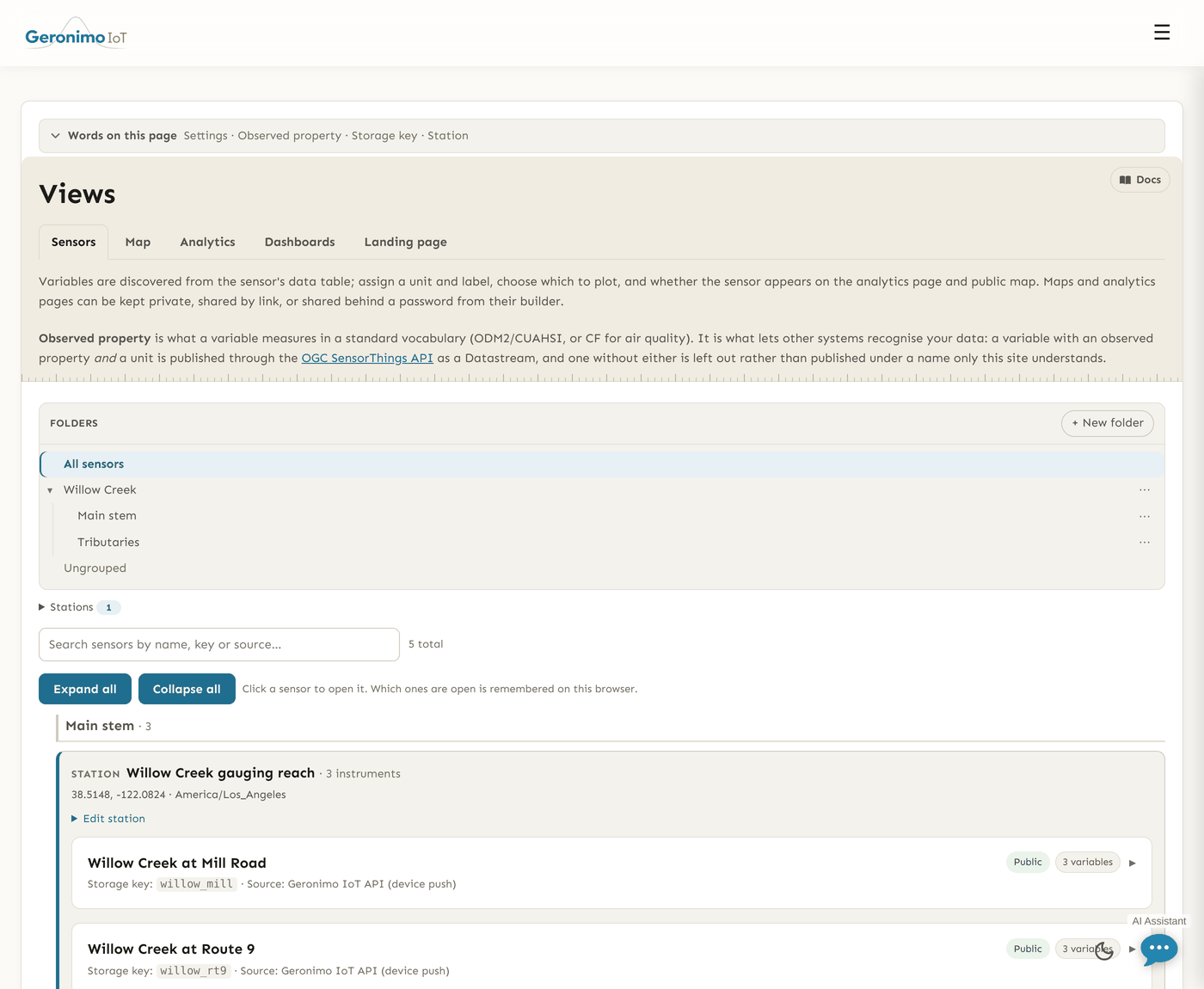
The page has five sub-tabs: Sensors (this page, the landing tab), Map, Analytics, Dashboards (see Dashboards) and Landing page. Anyone who can open one can open all five; what differs is what each lets you change.
The sensor card
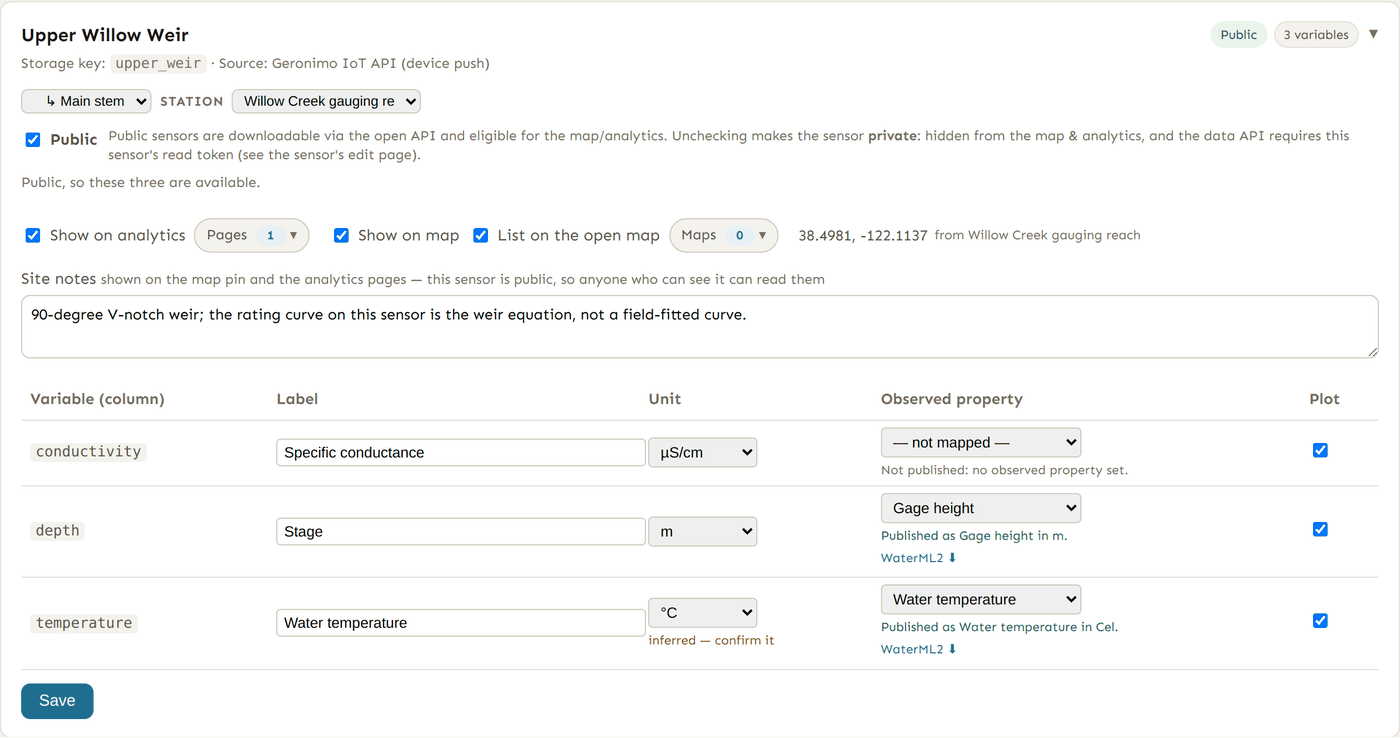
Each sensor is a card headed by its site code, with Storage key and Source underneath and two pickers at the right: the folder picker (Ungrouped or a folder) and the Station picker (Self-contained site or a station). Both save as soon as you change them. Everything else on the card saves together when you press Save at the bottom of the card.
| Control | What it does |
|---|---|
| Public | The master visibility switch. A public sensor is downloadable from the open data API without a token and is eligible for maps and analytics. Unticking it makes the sensor private: it is dropped from every map and analytics page, and the data API requires the sensor's read token (on its edit page). New sensors are private until someone ticks this, and it needs Settings edit rights. |
| Show on analytics | Plot this sensor on the analytics pages. Only honoured while the sensor is public. The Pages picker beside it lists the analytics pages you can see; tick the ones this sensor should appear on (pages you may only read are shown locked). |
| Show on map | Put this sensor's pin on maps. Only honoured while public, and it needs coordinates — saving with the box ticked and no latitude/longitude is refused. The Maps picker works like the pages picker. |
| Latitude / Longitude | Where the sensor is. On a sensor that stands at a station these are shown as read-only text "from" the station, because the station owns the location. |
| Site notes | Field notes about the site — access, recent work, anything a reader needs to interpret the data. Shown on the map pin's card and on the analytics pages; for a public sensor that means anyone who can see the sensor. If the box is empty and the sensor is on a station, readers see the station's notes instead. |
Per-variable settings
Below the switches, a table lists every variable discovered from the sensor's readings, one row per column:
| Column | What it does |
|---|---|
| Variable (column) | The raw column name as the source sends it (e.g. Meter_Hydros21_Temp). Not editable. |
| Label | The display name used on charts, pickers and exports. Blank falls back to the column name. |
| Unit | A dropdown of display units (— none —, °C, °F, µS/cm, mm, cm, m, ft, %, µg/m³, mbar, hPa, V, NTU, pH, mg/L, ppm, ft³/s, acre-ft, IAQ units). Each symbol maps to a UCUM code behind the scenes. A discharge series produced by a rating curve carries its own flow unit, which appears as an extra option so it is not blanked on save. |
| Observed property | What the variable measures, in a standard vocabulary: — not mapped — or one of Water temperature, Air temperature, Electrical conductivity, Specific conductance, Water depth, Gage height, Water surface elevation, Discharge, Dissolved oxygen, pH, Turbidity, Precipitation, Relative humidity, Barometric pressure, Battery voltage, PM2.5, PM10, Air quality index, Reservoir storage. Water quantities resolve to ODM2/CUAHSI terms, air quality to CF standard names. Discovery pre-fills a guess; you confirm it here. |
| Plot | Whether this variable is drawn on the analytics page. Untick noisy housekeeping columns (battery voltage, say) to keep charts readable without hiding the data from exports. |
When a variable is publishable
The standards endpoints — the OGC SensorThings API and WaterML2 downloads described on the API documentation page — publish a variable only when it has both an observed property and a recognised unit. A status line under the property dropdown says which: Not published: set an observed property and a unit., Not published: no observed property set., Not published: unit is not set or not recognised., or Published as Water temperature in Cel. When the pair is complete a WaterML2 ⬇ link appears for that series. A unit that measures a different quantity from the property (metres against a temperature, say) is saved but flagged — Published, but … check the pairing — and the save also warns, because that is the one mistake here that publishes wrong data rather than none. A property with no standard term (e.g. Air quality index) publishes under a local identifier and says so.
Unit provenance: inferred and changed units
When a variable is discovered, its unit is guessed from the column name and marked inferred — confirm it next to the dropdown. Every standards export carries a warning for that series until somebody confirms the unit, and saving the card is the confirmation — reading the guess, agreeing with it and pressing Save clears the mark, no edit required. Separately, when you change a unit the platform records the date and the previous unit, and exports of that series warn that readings stored before the change were recorded under the old unit. Exports convert with the unit in force now, so a mid-series change makes the earlier half publish wrongly; the warning is there so a recipient can tell. See Exports.
QC settings
Each variable also carries its QC configuration — valid range, band, spike, flat-line, rate-of-change, gap and multivariate tests — but those are edited in the QC workbench, not on this card. See Data quality.
Stations
Where several instruments stand at one place — a stage gauge, a sonde and a weather station on the same creek bank — put them on a station. Open the Stations panel at the top of the page, type a name (e.g. "Putah Creek at Road 32") and press Create station; the panel lists every station with its instrument count, coordinates, timezone and group. Then pick the station in the Station picker on each sensor's card. The cards regroup under a station card.
The instruments stay separate in every way that matters: each keeps its own upload frequency, its own credential and its own downtime alarm, so one going silent still raises its own alert. What the station owns is the place: its coordinates, timezone and site notes, typed once under Edit station (Name, Latitude, Longitude, Timezone, Site notes, then Save station) and pushed down to every instrument standing there that you may edit. Member sensors show their coordinates as read-only text, and their sensor form refuses a timezone change, because the station is where those are changed now. Delete station detaches its sensors rather than deleting them, and they keep the coordinates it gave them.
Folders on this page
The Folders tree at the top filters the cards exactly as it does on the Sensors list, and the folder picker on each card files the sensor. It is the same folder structure everywhere — file a sensor here and the Sensors, Alerts, Data quality, Rating curves and Exports pages see it in that folder too. Folder-scoped permissions follow the folder, so filing also decides who may edit the card.
The Map tab
Map lists the maps you can see — name, description, how many sensors and layers, and group — with Create map for those allowed to build one, Edit → (or Builder → for read-only access) to open the builder, and Open ↗ to view the published map. Sensors are placed by their coordinates; you can assign them to a map from the builder or from the Maps picker on the sensor card here. Basemaps, GeoJSON or shapefile layers and who can open a map are covered in Maps & the map builder.
The Analytics tab
Analytics lists your analytics pages the same way, with Create page, the builder link, Open ↗ and a link to the advanced tools over that page's sensors. A sensor plots on a page only if it is public and Show on analytics is on — and its Plot ticks decide which variables are drawn. Building pages, grouping charts and sharing them is covered in Analytics & analytics pages.
The Landing page tab
Landing page is where a group's own public front door is built: a page at /site/<your-group>/ with a hero, text, pictures, links and its published maps, analytics pages and dashboards. It opens the site studio, described in full under Groups, permissions and folders.
Unlike the other four tabs, a landing page belongs to one group, so the tab first works out whose you mean. If you are in one group with a site it opens straight into it; if you are in several it asks once, listing each with whether it is published and whether you may edit it or only look, and after that it returns you to the one you were last working on. The picker in the studio's header moves between them, and All landing pages beside it goes back to the list. If you are not in a group yet, the tab says so and points at the Groups page rather than leading nowhere.
Opening the studio needs read access to Settings for that group; saving anything — the layout, the pictures, publishing, the tagline and logos — is for the group's owner and admins. A member with read access sees the whole studio, live and explorable, with the save controls absent.